ERP Excel Integration: Is Excel an ERP? Your Options Compared and a Safe Two-Way Setup
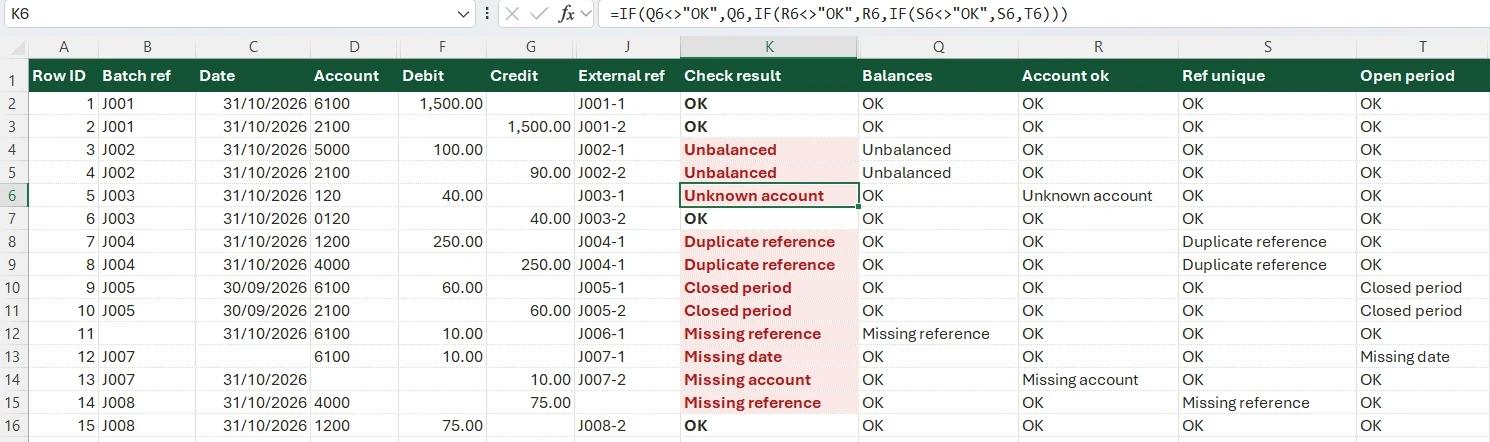
Tested in Excel. On 25 October 2026 we ran the four staging checks on this page in Excel for Microsoft 365 on Windows, on 15 rows built to trip each one, and ran HISAB 360 1.0.17's staging workflow against a QuickBooks Online sandbox company, from pulling the chart of accounts to posting a journal. The results are below. Outside sources and HISAB's own claims were re-checked the same day, the latter against the 1.0.17 source code. The screenshots are from the test (select one to see it full size).
Excel is not an ERP, yet many finance teams that run one still do their reconciliations, accruals and board packs in Excel. Good ERP Excel integration means getting data out accurately and sending changes back without posting mistakes. This guide explains the difference, compares the integration options, sets out the risks, and walks through a two-way method with a staging sheet and a review step.
Last checked: 25 October 2026. Non-obvious external claims link to their source. Here "ERP" also covers cloud accounting systems. We make one of the tools discussed, HISAB 360, so it comes last, with its limits spelt out.
The short answer
- Is Excel an ERP? No. An ERP is a shared transaction database with enforced rules: balanced double entry, user permissions, closed periods and an audit trail. Excel has none of these unless you build them.
- Reading ERP data into Excel: exports are free but go stale. Power Query connections over ODBC, OData or a web API refresh data into Excel but don't send changes back.
- Writing back: CSV imports, vendor add-ins, automation platforms, API scripts and some Excel add-ins can post to the ERP.
- The safe pattern: post only from a staging sheet that formulas have checked and a second person has reviewed, in small batches, with the ERP's ID written back to each row.
Is Excel an ERP system?
No. Excel is a general-purpose calculation grid. An ERP (enterprise resource planning system) runs a business's core processes, such as accounting, sales, purchasing and inventory, on one shared database. The real difference is enforcement: an ERP refuses to let certain things happen, and Excel accepts whatever you type. ERP vs Excel, control by control:
| Control | A typical ERP or accounting system | A plain Excel workbook |
|---|---|---|
| Double entry | A journal that doesn't balance is rejected | Any cell accepts any number; imbalances show only if you build a check |
| Single source of truth | One record per transaction, shared by every user | Copies in many files, edited separately |
| Permissions | Roles decide who can view, post or approve | Whoever opens the file sees every sheet. Microsoft says worksheet protection "isn't intended as a security feature" |
| Closed periods | Prior periods can be locked | Nothing stops a change to last year's figures |
| Audit trail | Who posted, changed or voided each record | Cell-level change history at most (Show Changes in Excel for Microsoft 365); no approvals or locked postings |
| Scale | Built for years of transactions | 1,048,576 rows by 16,384 columns per worksheet |
Signs you have outgrown Excel as your system: several people key into the same file, you can't tell who changed a figure, stock or balances are rebuilt from formulas each month, and approvals happen by email. So the ERP should own transactions and controls, and Excel should own analysis and working papers.
Can you make an ERP system in Excel? (and what Excel ERP templates contain)
You can build something that looks like a small ERP, and for a sole trader it can be enough. A typical "Excel ERP template" has sheets like these:
| Sheet | What it holds | Key formulas |
|---|---|---|
| Customers and suppliers | IDs, names, payment terms | Source ranges for drop-down lists (data validation) |
| Items | Code, description, cost, price | Unique codes that other sheets look up |
| Sales register | Date, customer ID, item code, quantity | XLOOKUP (or INDEX/MATCH) for price; drop-down lists |
| Purchases register | The same shape for suppliers | XLOOKUP for cost |
| Stock ledger | Movements in and out per item | SUMIFS of quantity in minus quantity out |
| Journal | Date, account, debit, credit | SUMIFS trial balance with a check that debits equal credits |
Templates often add macros, so check whether they lock sheets with VBA and whether you can see the formulas. Our guides to accounting in Excel and building a data entry form show how to build one properly. It stops working when several people enter data at once or you need inventory costing, bank feeds or tax returns; then move the transactions into a real system.
Why finance teams still export ERP data to Excel
Because ERP reports answer the questions the vendor expected, and month-end raises others:
- Reconciliations and working papers need side-by-side columns, notes and tick marks.
- Adjustments such as accruals, prepayments and allocations are worked out in a schedule, then posted as journals.
- Several ledgers: groups with entities on different systems often consolidate in Excel.
ERP Excel integration options compared
Last checked: 25 October 2026. "Direction" means which way data flows with that method alone.
| Option | Direction | How fresh | Set up by | Good for | Watch out for |
|---|---|---|---|---|---|
| 1. Manual export | ERP → Excel | As at export | Anyone | One-off analysis, audit requests | Export caps, report formatting, stale copies |
| 2. CSV or Excel import | Excel → ERP | n/a | Bookkeeper | Opening balances, bulk journals | A mapping error posts every row wrongly |
| 3. ODBC driver (via Power Query) | ERP → Excel | On refresh | IT or power user | SQL-style queries | Driver set-up on each PC; who supplies the driver |
| 4. OData feed | ERP → Excel | On refresh | Power user | ERPs that publish OData | Needs a feed; sign-in support varies |
| 5. Power Query from a web API | ERP → Excel | On refresh | Power user who writes M | APIs that accept a key | OAuth sign-in; paging |
| 6. Vendor Excel add-in | Often two-way | On refresh or publish | Admin | Teams on that one ERP | One system, sometimes one plan; inherits API limits |
| 7. Automation platform (iPaaS) | Both | Scheduled or on events | Operations or IT | Event syncs between apps | Third party holds tokens; file locks and duplicate rows |
| 8. Your own API scripts | Both | When run | Developer | One repeatable job | Maintenance, credential storage, API changes |
| 9. Excel add-in with staging sheet (e.g. HISAB 360) | Both | When asked; no live refresh | Accountant, plus one-off app set-up | Reconciliations and journal batches needing review | Windows desktop Excel only; five systems |
1. Manual exports
Exporting a report to CSV or XLSX is free, which is why it's everywhere. But exports carry headers and subtotals to strip out, some systems cap export size, and every export goes stale as soon as someone posts.
2. CSV and Excel imports
Many accounting systems import journals, contacts, items or invoices from a spreadsheet. The danger is that one wrongly mapped column or flipped sign posts every row the same wrong way, and import screens check format rather than accounting sense. See importing journal entries into QuickBooks Online from Excel for the pitfalls on one system.
3. ODBC
An ODBC driver makes a source look like a database Excel can query. Power Query's ODBC connector needs the connection configured in the Windows ODBC Data Source Administrator first, so every PC that refreshes the file needs the driver set up. For cloud ledgers, check who supplies the driver: if it isn't the ERP vendor, a third party holds a connection to your books.
4. OData feeds
Some ERPs publish data as OData, a standard web format Power Query reads directly. Microsoft's OData Feed connector page lists anonymous, Windows, Basic, Web API and organisational account sign-in, but warns that built-in OAuth to arbitrary services "doesn't work in most cases" and that joins can be slow.
5. Power Query from a web API
Without a feed, Power Query's Web connector can call a REST API if you write the M code for authentication and paging. That suits APIs that accept a key. QuickBooks Online, Xero, Zoho Books and FreshBooks use OAuth 2.0, and Microsoft's route for OAuth is a custom connector built with the Power Query SDK, whose distribution guidance covers Power BI and doesn't mention Excel. Power BI Desktop's ready-made QuickBooks Online connector has also been retired (see the March 2026 entry in the Power BI Desktop update archive); see the QuickBooks Power Query connector alternatives.
Connections can refresh when the file opens or every set number of minutes, though Microsoft notes external data may be disabled on your computer until you enable the connections from the Trust Center bar or use a trusted location. Used through Power Query, ODBC, OData and web API connections all bring data in; none sends changes back.
6. Vendor Excel add-ins
Some ERP vendors ship an Excel add-in that pulls lists into a sheet and publishes edits back under the system's own rules. They also carry its limits: Microsoft's Dynamics 365 Business Central documents that its Excel add-in works on Windows only and inherits the limits of the API underneath, including business logic that behaves differently through it.
7. Automation platforms (iPaaS)
Integration platforms (iPaaS, short for integration platform as a service) link apps with triggers and actions, such as adding a workbook row when an invoice is created. Microsoft's Excel Online (Business) connector, used by Power Automate and Logic Apps, works only on files in OneDrive for Business, SharePoint or Microsoft 365 Groups and lists a 25 MB file limit; its list-rows action returns 256 rows by default unless pagination is on. It may lock a file for up to 6 minutes, doesn't support simultaneous edits, and after a timeout caused by formulas or a large sheet its retry can insert the same data more than once. Ask where the platform stores your ERP tokens.
8. Your own API scripts
A VBA macro or Python script calling the ERP's API gives full control and makes you the maintainer: authentication, token refresh, paging, errors and safe credential storage. APIs also change. Odoo's documentation says its XML-RPC and JSON-RPC endpoints are scheduled for removal in Odoo Online 21.1 (winter 2027) and Odoo 22 (autumn 2028). For one ledger end to end, see getting Xero data into Excel.
9. Excel add-ins with a staging sheet
Some Excel add-ins read and write the ERP from inside the workbook through a staging sheet like the one below. We make one, so it is covered at the end.
The risks of moving ERP data through Excel
Stale data
A figure pulled on Tuesday is wrong by Wednesday if someone posts a late invoice. Stamp every pulled sheet with an "as at" date, time and filters, and re-pull and tie back to the trial balance before final numbers.
Version sprawl
"Accruals v3 FINAL (2).xlsx" is a control problem: keep one working file per process in a shared location, and archive the signed-off version as read-only.
Access control
A general ledger export can include payroll or customer details the file's holder couldn't see in the ERP. Export only what you need, store files where access is managed, and remember that an API key saved in a macro is readable by anyone who opens the file.
Posting errors
Writing back turns a spreadsheet mistake into a ledger mistake: a wrong account code, swapped debit and credit, a blank tax code, a date in a closed period, or the same batch posted twice. Don't count on the ERP to undo a whole batch; corrections usually mean reversing, voiding or deleting records one at a time. The safeguards belong before posting.
How to set up a two-way ERP and Excel workflow with a staging sheet
This works with any write route: nothing goes to the ERP from a working sheet, only from a staging sheet that has been checked, reviewed and logged.
- Pull a dated snapshot of the chart of accounts, tax codes and contacts, each on its own sheet, keeping the ERP's IDs.
- Prepare accruals, allocations or reclassifications in a working sheet.
- Copy results to a staging sheet, one row per line, with the control columns below.
- Validate with formulas: journals balance, accounts and tax codes exist, dates fall in an open period, no reference repeats.
- Review and sign off. A second person checks totals by account and a sample of lines, and records name and date.
- Post a small batch first, to a sandbox or as drafts where possible.
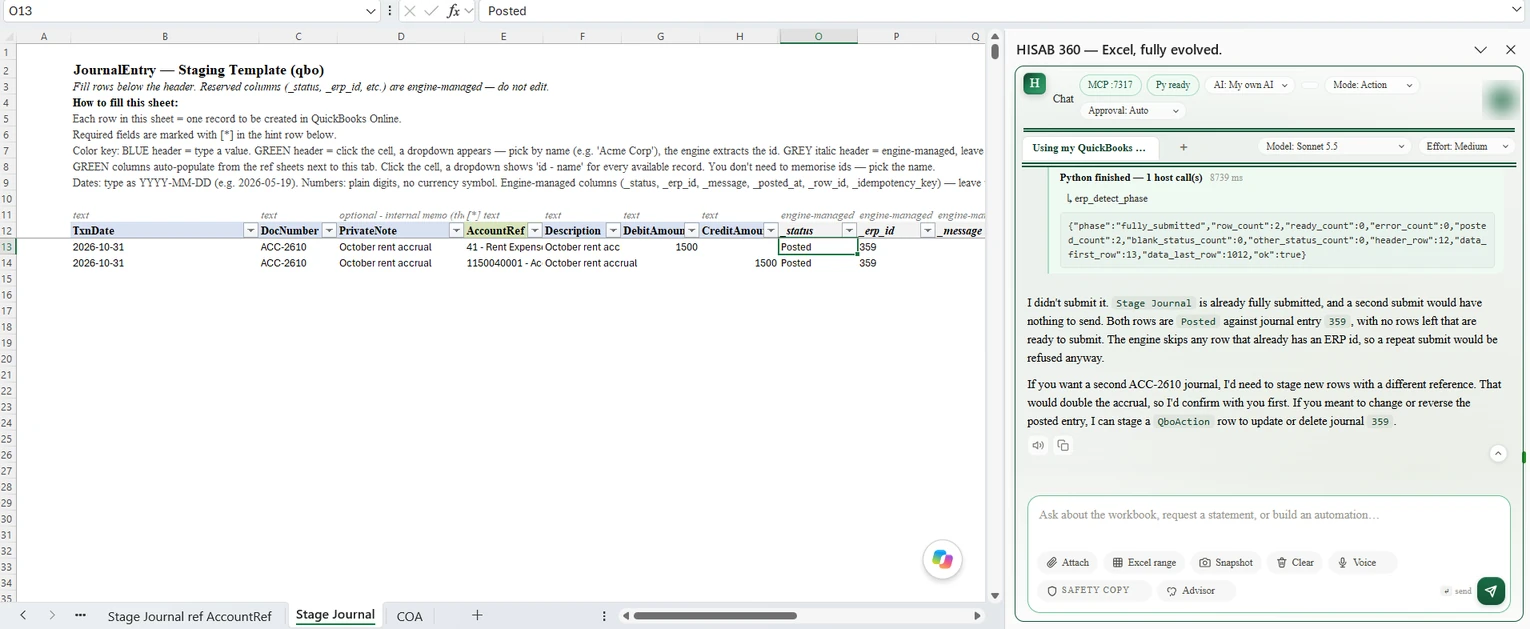
- Write the result back to each row: ERP ID, status, message. A row with an ERP ID is never sent again.
- Reconcile: re-pull the affected accounts and check the movement equals your staging totals.
- Correct in the ERP by reversing or voiding, then stage a new row. Keep the evidence.
| Column | Staging column | Purpose |
|---|---|---|
| A | Row ID | Unique key to match results back |
| B | Journal or batch reference | Groups lines that must balance together |
| C–I | Date, account, contact, debit, credit, tax code, description | What the ERP needs |
| J | External reference | Unique per line and sent to the ERP, so a repeat can be spotted |
| K | Check result | OK, or why the row fails |
| L–N | Status, ERP ID, message | Proof of what the ERP created, or why it refused |
| O–P | Posted at, reviewed by | When it went through and who approved it |
Four formulas cover the basic checks. They use the layout above (dates in C, accounts in D, debits in F, credits in G), a pulled chart of accounts with codes in column A of a sheet named COA and a cell named LockDate holding your ERP's lock or closing date. Change the letters and names to suit. Put each in its own helper column to the right of P, or combine them in K so it shows the first failure, e.g. =IF(Q2<>"OK",Q2,IF(R2<>"OK",R2,IF(S2<>"OK",S2,T2))).
Journal balances (all lines sharing this reference):
=IF(B2="","Missing reference",IF(ROUND(SUMIFS($F:$F,$B:$B,B2)-SUMIFS($G:$G,$B:$B,B2),2)=0,"OK","Unbalanced"))

Account exists in the pulled chart of accounts:
=IF(D2="","Missing account",IF(SUMPRODUCT(--EXACT(COA!$A$2:$A$5000,D2))=0,"Unknown account","OK"))

External reference used more than once:
=IF(J2="","Missing reference",IF(COUNTIF($J:$J,J2)>1,"Duplicate reference","OK"))

Date falls in an open period:
=IF(C2="","Missing date",IF(C2<=LockDate,"Closed period","OK"))
The blank checks come first because a blank cell would otherwise pass as OK. Store account codes as text on both sheets so leading zeros match; the account check uses EXACT because COUNTIF would treat 0120 and 120 as the same code. Don't post until every check says OK. See Excel ERP reconciliation and write-back for the full loop.
How HISAB 360 handles ERP and Excel integration
HISAB 360 is an AI assistant add-in for Windows desktop Excel that connects two-way to QuickBooks Online, Xero, Zoho Books, Odoo and FreshBooks.
Reading. The AI pulls records into sheets with filters and paging, and reports such as profit and loss, balance sheet, trial balance, general ledger and aged receivables and payables. Availability varies: Xero has no general-ledger report and its aged reports are per contact, and Odoo's financial reports use Enterprise report methods, so they may be missing on Community; FreshBooks has no aged payables report. Data lands as static values with no live refresh: you ask again or re-run a saved automation, and a report cell set up for drill-down re-queries the ERP when double-clicked.
Writing. Record writes use a staging sheet, the same idea as the method above. HISAB creates a template sheet with control columns, validates the rows, submits them and writes the ERP ID, status and message back to each row; re-runs skip rows already posted. Coverage includes invoices, bills, journals, contacts, items, payments and credit notes, plus update, void, delete and send on existing records, varying by system. It can also attach files to existing records (QuickBooks Online, Xero, Zoho Books, Odoo), apply credit notes to invoices or bills (QuickBooks Online, Xero, Zoho Books, Odoo), and register and reconcile Odoo payments. The second-person review, test batch and reconciliation are still yours.
Controls. A connection is read-only until you switch it to Read + Write. Every ERP write shows a confirmation card you must click, including drafts, master data, updates, voids, deletes, attachments, credit applications and Odoo payment registration. Duplicate submissions are suppressed, writes to a record type pause for 10 minutes (or until you click Reset writes) after 3 failures in a row, and a local audit log keeps hashes of each write rather than the data.
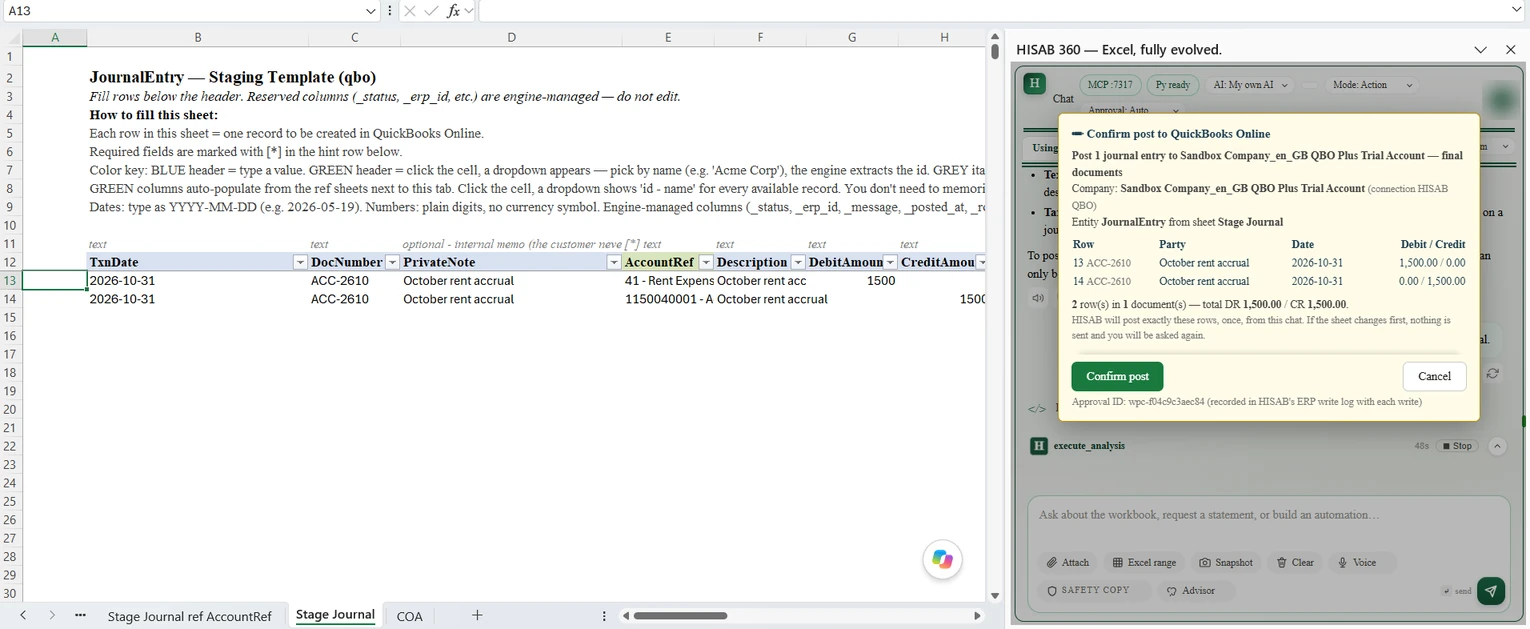
We tried the whole loop against a QuickBooks Online sandbox company (UK edition). The first request, typed into the HISAB panel:
Using my QuickBooks Online sandbox connection, pull the chart of accounts onto a sheet called COA. Then set up a journal staging sheet for an October month-end accrual dated 31 October 2026: debit the rent expense account 1,500 and credit an accruals liability account 1,500, description "October rent accrual", reference ACC-2610. Use the closest account names in the chart and tell me which you picked. Validate the staging rows, but don't post anything yet.
HISAB pulled all 78 accounts onto a COA sheet and picked Rent Expense. The chart had no accruals account, so it stopped and asked, rather than crediting creditors or the VAT control account. We told it to create one, which needed its own approval card because QuickBooks has no draft accounts. It then staged the two journal lines, validated them and stopped. When we asked it to post, the card below named the company, both rows and the totals. After we confirmed, QuickBooks returned journal entry 359, and HISAB wrote that ID back to both rows. Asked to submit the sheet again, it declined: every row already had an ERP ID.
The limits, plainly:
- Some approvals create final records. Every ERP write shows a card, drafts included. But customers, suppliers, items and accounts have no draft state, and neither do FreshBooks bills, expenses and journal entries, so approving them creates final records; the card says so. A saved automation that writes asks once per run, and that card covers every write in the run.
- No automatic rollback. Fix mistakes in the ERP by voiding, deleting, reversing or a counter-entry.
- Rate limits slow big jobs. If an ERP throttles a large pull or batch, HISAB waits and retries for up to about 5 minutes. If the limit doesn't clear, or it is a daily limit, the batch stops: rows not yet sent are marked as not submitted, so you can re-run the submit later.
- You do the set-up. QuickBooks Online, Xero, Zoho Books and FreshBooks connect with OAuth 2.0 through your own developer app. FreshBooks requires an HTTPS redirect, so its sign-in passes through a HISAB-hosted relay that forwards to Excel on your PC. Odoo uses URL, database, username and password over the RPC endpoints Odoo plans to remove.
- Xero journals. Xero moved apps created on or after 2 March 2026 to granular scopes. HISAB no longer requests Xero's journals scope, so a Xero connection authorised in a current version can't read Xero's journal stream, and HISAB has no account-by-account transaction listing for it. Profit and loss, balance sheet, trial balance and manual journals still work.
- Windows desktop Excel only. No Mac, Excel for the web or Google Sheets.
Good for: finance teams on the five supported systems whose output is a reconciliation, schedule or journal batch someone must review. Not for: other ERPs, unattended scheduled syncing, or Mac and browser users. Set-up is in the ERP connectors docs; free methods are in connecting QuickBooks and Xero to Excel.