How to Create a Data Entry Form in Excel: 4 Ways, From the Built-in Form to a Validated VBA UserForm
Tested in Excel. On 24 October 2026 we built this guide's register and form in Excel for Microsoft 365 on Windows, pasted in every code block exactly as published, compiled it with no errors and used it: pressed Enter on an empty form, tried a duplicate invoice number, then saved a new invoice with leading zeros. We also opened Excel's built-in data form with the macro from Method 1. Everything behaved as described. We could not test Microsoft Forms, which needs a work or school OneDrive; that section is checked against Microsoft's documentation. The screenshots are from that test (select one to see it full size).
You can create a data entry form in Excel in four practical ways: switch on Excel's hidden Form button, lay out a fillable worksheet with data validation, build a VBA UserForm that checks each entry before it reaches your table, or collect entries through Microsoft Forms. This guide covers all four, with working VBA for a supplier invoice register and the limits of each.
Last checked: 24 October 2026. We make HISAB 360, so it comes last, with its limits.
How to create a data entry form in Excel: quick answer
- Convert your data to a table with Ctrl+T, one heading per column.
- Add Form to the Quick Access Toolbar (More Commands > All Commands > Form).
- Click a cell in the table and select Form.
- Select New, type the record and press Enter.
Need drop-down lists, required fields or duplicate checks? Use the VBA UserForm in Method 3.
Which data entry form should you use?
Use the built-in form for quick keying, a worksheet form or VBA UserForm when entries must be checked, and Microsoft Forms when the people entering data never open the workbook.
| Option | Best for | Validation | Macro-enabled file? | Main limit |
|---|---|---|---|---|
| Built-in data form (Form button) | Fast keying into a wide table on your own PC | None of its own; every field is a plain text box | No | 32 columns maximum, no printing, deleted rows cannot be restored |
| Fillable worksheet (validation plus sheet protection) | Templates such as expense claims | Drop-down lists, number, date and length rules per cell | No | Does not add a row to a register by itself |
| VBA UserForm | A register a small team updates inside one workbook | Anything you can code: required fields, amounts, dates, duplicates | Yes (.xlsm) | Needs desktop Excel with macros allowed; Excel for the web cannot run it |
| Microsoft Forms | Collecting entries from people outside the workbook | Set up in Forms, not in Excel | No | Creating from Excel needs OneDrive for work or school; editing the responses workbook can break the sync |
| UserForm built by HISAB 360 | The UserForm route without writing VBA | Checks the AI writes as VBA. Code added with its write and replace tools is linted, and a write is undone if Error-level problems appear | Yes (.xlsm) | Windows desktop Excel only. You switch on HISAB's macro permissions and Excel's VBA project access, and click-test the form yourself |
How do I create a data entry table in Excel?
Put one heading per column in a single row, one record per row below it, then press Ctrl+T. Tables grow automatically, and code can refer to columns by name.
- No blank rows. Microsoft says a data form range must have no blank lines.
- Put formulas in calculated columns. A formula such as
=[@Net]+[@VAT]in a table column fills down automatically, so no form needs to write it. - Format ID columns as Text first, so invoice number 00123 keeps its leading zeros instead of becoming 123.
- Keep lists in their own tables. Suppliers and cost centres then feed drop-down lists and form combo boxes.
In this guide's example, sheet Register holds table tblPurchaseRegister with columns Date, Supplier, Invoice No, Net, VAT, Gross (calculated), Entered By and Entered At, and sheet Lists holds a one-column table, tblSupplierList.
Method 1: Excel's built-in data entry form (the Form button)
Excel already includes a data entry form. It is not on the ribbon, so you add it to the Quick Access Toolbar once.
How to add the Form button to the Quick Access Toolbar
- Select the arrow next to the Quick Access Toolbar and choose More Commands. If the toolbar is hidden, right-click the ribbon and choose Show Quick Access Toolbar first.
- In Choose commands from, pick All Commands.
- Select Form, then Add, then OK.
- Click any cell in your table and select the new Form button.
Excel opens a dialog with one labelled box per column. These are Microsoft's documented steps for Excel for Microsoft 365 and Excel 2016 to 2024.
How to add, find, edit and delete records
- Add: select New, type the values and press Enter. The row goes to the bottom of the table.
- Find: use Find Prev and Find Next, or select Criteria and type a value. Entries starting with your text match, and
?and*work as wildcards. Type~before?or*to search for the character itself. - Edit: find the row, change it and press Enter. Restore discards your typing only before you press Enter.
- Delete: select Delete and confirm. Microsoft says a confirmed deletion cannot be undone.
Is there a shortcut key for the data entry form?
There is no ribbon shortcut, but Excel still accepts most old Alt menu sequences: click in your table, then press Alt, D and O one after another. Pressed together, they only bring up an access key prompt. With Form on the Quick Access Toolbar, you can also press Alt and the KeyTip Excel shows over the button.
How to open the data form with a button
To open the same dialog from a worksheet button, use Worksheet.ShowDataForm in a standard module of an .xlsm file (see Step 6 for buttons).
Option Explicit

Public Sub OpenRegisterDataForm()
    Dim ws As Worksheet
    Set ws = ThisWorkbook.Worksheets("Register")
    Application.Goto ws.ListObjects("tblPurchaseRegister").Range.Cells(1, 1)
    ws.ShowDataForm   ' the macro pauses until the form is closed
End Sub
Microsoft's reference does not say how Excel picks the range, so the code selects a table cell first; test the button once. Change the sheet and table names to match yours.
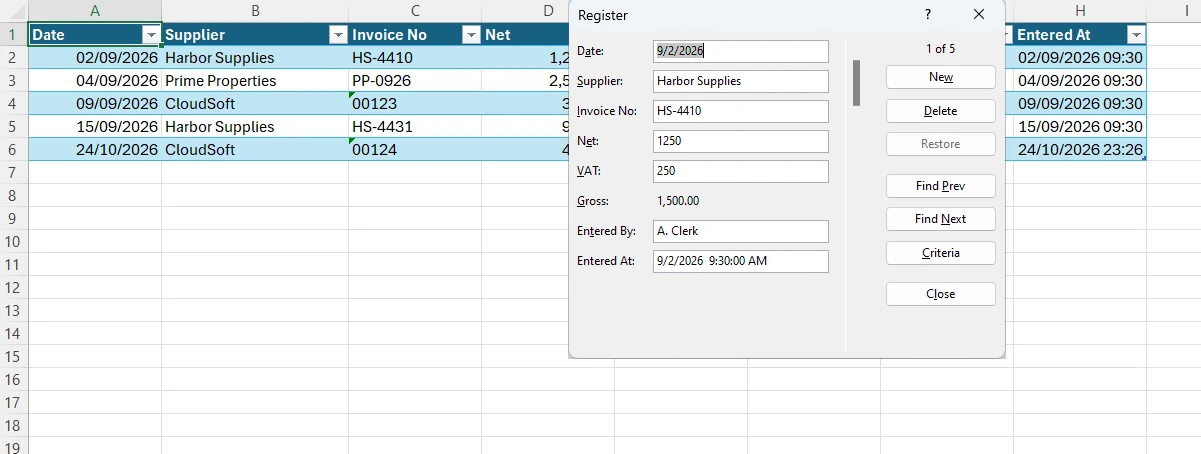
Limits of Excel's data form, and why it may not open
From Microsoft's data form page, plus what the dialog lacks:
- 32 columns at most. If Excel says "Too many fields in the data form", split the table or use a UserForm.
- The form picks up the wrong rows. Click a cell inside the table first, and remove blank rows from the range.
- No printing. You cannot print the form, and Print is unavailable while it is open.
- Formulas are read-only. You see results but cannot edit formulas.
- Plain text boxes only. Drop-down arrows from data validation do not appear, and Microsoft does not document whether validation rules apply to values saved from the form, so test with one bad entry.
- No custom checks. It cannot require a field, reject a duplicate invoice number or stamp who entered the row.
Fine for a personal log; a register others update or an auditor reviews needs a form that checks each entry.
Method 2: a fillable worksheet form with data validation
For a form someone completes and sends back, such as an expense claim, a protected worksheet is often enough and needs no macros.
- Lay out labels and input cells like a paper form.
- Add data validation: a list for cost centres, Decimal greater than 0 for amounts, a Date range for the period, each with an error alert.
- Unlock only the input cells (Ctrl+1, Protection, clear Locked), then use Review > Protect Sheet, as in Microsoft's guide to locking specific areas.
The catch: a filled-in sheet is a document, not a database, so someone still copies each one into your register. When that becomes the job, move to a UserForm.
Method 3: build a VBA UserForm that validates entries and appends to a table
A UserForm is a custom dialog built in the Visual Basic Editor. It can refuse bad entries, offer drop-down lists, stamp who entered each row and clear itself for the next invoice. For controls and events in more depth, see our Excel VBA UserForm guide.
Step 1: prepare the workbook
- Build
tblPurchaseRegisterandtblSupplierListas above, with Invoice No formatted as Text. - Save as Excel Macro-Enabled Workbook (.xlsm); VBA only lives in macro-enabled files.
- Show the Developer tab (File > Options > Customize Ribbon, tick Developer).
Step 2: draw the form and name the controls
Press Alt+F11, choose Insert > UserForm and set its (Name) to frmInvoiceEntry. Add labels and the controls below. The code assumes these exact names.
| Control | (Name) | Property to set |
|---|---|---|
| TextBox | txtDate | None |
| ComboBox | cboSupplier | None (the code makes it pick-from-list only) |
| TextBox | txtInvoiceNo | None |
| TextBox | txtNet | None |
| TextBox | txtVAT | None |
| CommandButton | btnSave | Caption Save; Default True (Enter saves) |
| CommandButton | btnClose | Caption Close; Cancel True (Esc closes) |
Set each control's TabIndex in the order people type, starting with txtDate at 0.
Step 3: load the supplier list when the form opens
Right-click the form, choose View Code and paste this at the top (skip the Option Explicit line if the module already has one). It fills the supplier box from tblSupplierList, allows only listed suppliers and suggests today's date.
Option Explicit

Private Const DATA_SHEET As String = "Register"
Private Const DATA_TABLE As String = "tblPurchaseRegister"

Private Sub UserForm_Initialize()
    Dim suppliers As Range
    Dim supplierCell As Range

    cboSupplier.Style = fmStyleDropDownList   ' pick from the list only
    Set suppliers = ThisWorkbook.Worksheets("Lists").ListObjects("tblSupplierList").DataBodyRange
    If Not suppliers Is Nothing Then
        For Each supplierCell In suppliers.Columns(1).Cells
            If Len(supplierCell.Text) > 0 Then cboSupplier.AddItem supplierCell.Text
        Next supplierCell
    End If
    txtDate.Value = CStr(Date)   ' today, in this PC's short date format
End Sub
Change the names in quotes if yours differ.
Step 4: validate the entry before anything is written
Add these functions below. EntryProblems collects every problem into one message. IsAmount accepts only digits, separators and a minus sign, so entries such as 1e5 or &H10, which VBA's IsNumeric allows, are rejected. IsDuplicateInvoice compares invoice numbers exactly as typed, ignoring case, so 0123 and 123 are different invoices.
Private Function EntryProblems() As String
    Dim msg As String
    Dim tbl As ListObject

    If Not IsDate(txtDate.Value) Then msg = msg & "- Enter a valid invoice date." & vbCrLf
    If cboSupplier.ListIndex = -1 Then msg = msg & "- Choose a supplier from the list." & vbCrLf
    If Len(Trim$(txtInvoiceNo.Value)) = 0 Then msg = msg & "- Enter the invoice number." & vbCrLf

    If Not IsAmount(txtNet.Value) Then
        msg = msg & "- Net amount must be a number." & vbCrLf
    ElseIf CDbl(txtNet.Value) <= 0 Then
        msg = msg & "- Net amount must be greater than zero." & vbCrLf
    End If

    If Not IsAmount(txtVAT.Value) Then
        msg = msg & "- VAT must be a number (enter 0 if none)." & vbCrLf
    ElseIf CDbl(txtVAT.Value) < 0 Then
        msg = msg & "- VAT cannot be negative." & vbCrLf
    End If

    If Len(msg) = 0 Then
        Set tbl = ThisWorkbook.Worksheets(DATA_SHEET).ListObjects(DATA_TABLE)
        If IsDuplicateInvoice(tbl, CStr(cboSupplier.Value), Trim$(txtInvoiceNo.Value)) Then
            msg = msg & "- This supplier invoice number is already recorded." & vbCrLf
        End If
    End If

    EntryProblems = msg
End Function

Private Function IsAmount(ByVal entry As String) As Boolean
    entry = Trim$(entry)
    ' digits, . , and - only (no exponents, hex or currency symbols)
    IsAmount = Len(entry) <= 20 And IsNumeric(entry) And Not (entry Like "*[!0-9.,-]*")
End Function

Private Function IsDuplicateInvoice(ByVal tbl As ListObject, ByVal supplier As String, ByVal invoiceNo As String) As Boolean
    Dim supplierCol As Range
    Dim invoiceCol As Range
    Dim r As Long

    If tbl.ListRows.Count = 0 Then Exit Function
    Set supplierCol = tbl.ListColumns("Supplier").DataBodyRange
    Set invoiceCol = tbl.ListColumns("Invoice No").DataBodyRange
    For r = 1 To tbl.ListRows.Count
        If StrComp(CStr(supplierCol.Cells(r, 1).Value), supplier, vbTextCompare) = 0 Then
            If StrComp(Trim$(CStr(invoiceCol.Cells(r, 1).Value)), invoiceNo, vbTextCompare) = 0 Then
                IsDuplicateInvoice = True
                Exit Function
            End If
        End If
    Next r
End Function
For credit notes, relax the net check to allow negatives. Keep error values such as #N/A out of the Supplier and Invoice No columns, or the duplicate check will stop with a type mismatch.
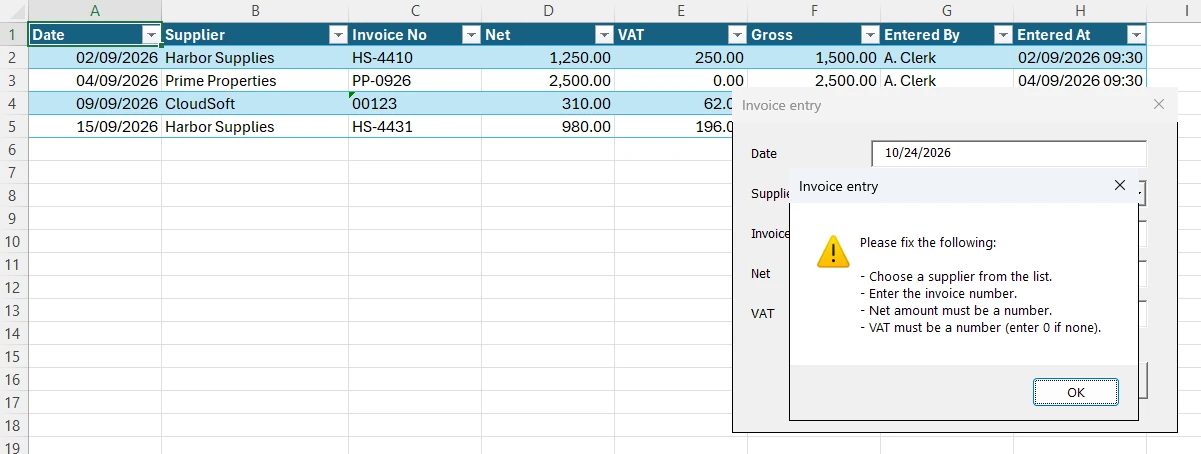
EntryProblems lists everything that needs fixing at once.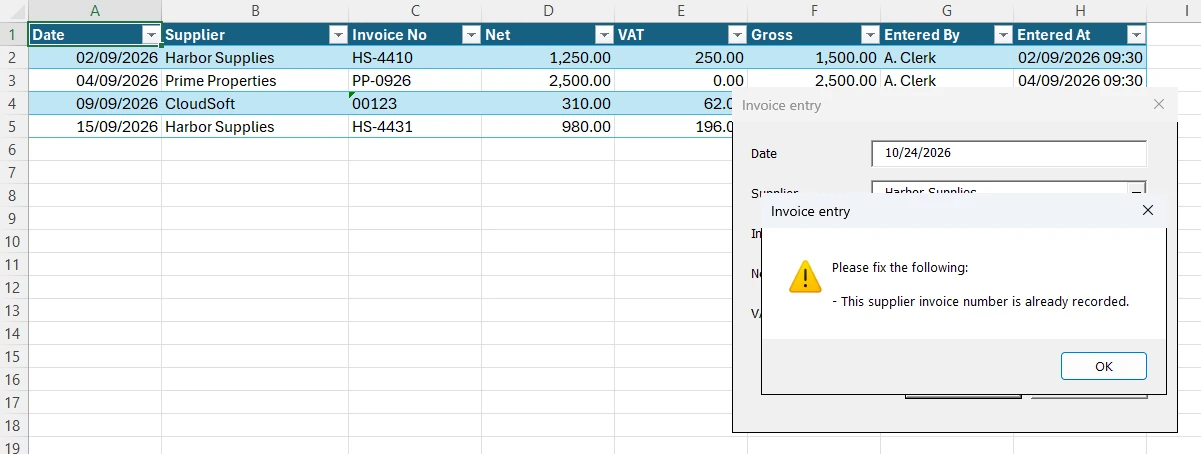
Step 5: append the row to the table
Add the Save and Close handlers. ListRows.Add adds a row at the bottom of the table, and writing by column name means reordering columns will not break the form.
Private Sub btnSave_Click()
    Dim problems As String
    Dim errText As String
    Dim tbl As ListObject
    Dim newRow As ListRow

    problems = EntryProblems()
    If Len(problems) > 0 Then
        MsgBox "Please fix the following:" & vbCrLf & vbCrLf & problems, vbExclamation, "Invoice entry"
        Exit Sub
    End If

    On Error GoTo SaveFailed
    Set tbl = ThisWorkbook.Worksheets(DATA_SHEET).ListObjects(DATA_TABLE)
    Set newRow = tbl.ListRows.Add
    With newRow.Range
        .Cells(1, tbl.ListColumns("Date").Index).Value = CDate(txtDate.Value)
        .Cells(1, tbl.ListColumns("Supplier").Index).Value = cboSupplier.Value
        With .Cells(1, tbl.ListColumns("Invoice No").Index)
            .NumberFormat = "@"   ' keep leading zeros
            .Value = Trim$(txtInvoiceNo.Value)
        End With
        .Cells(1, tbl.ListColumns("Net").Index).Value = Application.WorksheetFunction.Round(CDbl(txtNet.Value), 2)
        .Cells(1, tbl.ListColumns("VAT").Index).Value = Application.WorksheetFunction.Round(CDbl(txtVAT.Value), 2)
        .Cells(1, tbl.ListColumns("Entered By").Index).Value = Application.UserName
        .Cells(1, tbl.ListColumns("Entered At").Index).Value = Now
    End With

    txtInvoiceNo.Value = vbNullString   ' keep date and supplier for the next invoice
    txtNet.Value = vbNullString
    txtVAT.Value = vbNullString
    txtInvoiceNo.SetFocus
    Exit Sub

SaveFailed:
    errText = Err.Description
    Resume RemoveHalfRow
RemoveHalfRow:
    On Error Resume Next
    If Not newRow Is Nothing Then newRow.Delete   ' remove a half-written row
    On Error GoTo 0
    MsgBox "The invoice was not saved: " & errText, vbCritical, "Invoice entry"
End Sub

Private Sub btnClose_Click()
    Unload Me
End Sub
Why these choices matter:
- Rounding. VBA's own
Rounddoes banker's rounding, which Microsoft warns about.WorksheetFunction.Roundmatches the worksheet ROUND formula. - Dates.
CDatereads dates using your PC's locale settings: 03/04/2026 is 3 April on a UK-configured PC and 4 March on a US one. A date typed without a year gets the current year, as Microsoft documents for DateValue. Ask people to type dates like 3 Apr 2026. - Entered By is the user name set in Excel's options, not a verified login, so treat it as a note.
- Protected sheets. If Register is protected, the save fails with the error message.
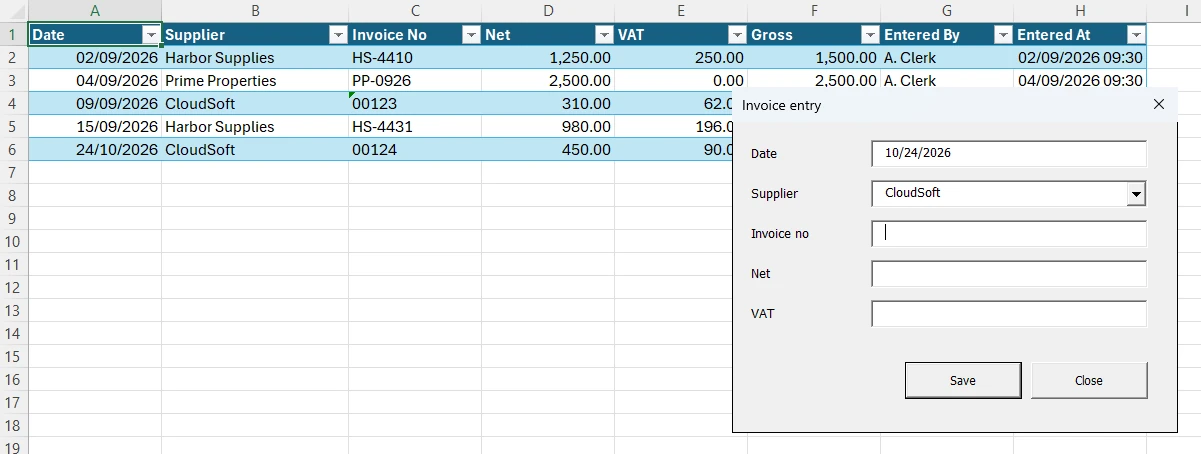
Step 6: open the form from a button
Insert a standard module (Insert > Module) and paste this, again skipping Option Explicit if it is already there:
Option Explicit

Public Sub ShowInvoiceForm()
    frmInvoiceEntry.Show
End Sub
On the Register sheet, choose Developer > Insert > Button (Form Control), draw the button and assign ShowInvoiceForm. Save, click the button and try to break the form: blank fields, letters in amounts, the same invoice twice.
Sharing the form with colleagues
- Downloaded or emailed copies arrive with macros blocked. Per Microsoft's guidance, tick Unblock in the file's Properties or use a Trusted Location.
- Excel for the web cannot run it. Microsoft says you can't create, run, or edit VBA macros there.
- Plan for one person at a time. Excel for Microsoft 365 can co-author an .xlsm saved in OneDrive or SharePoint, but test it before several people save rows at once. If they must, use Microsoft Forms or a proper system.
If the button does nothing or you get a compile error, see our macro troubleshooting guide.
Method 4: Microsoft Forms, when other people fill it in
If the people entering data should not open your workbook, use Microsoft Forms. In Excel for the web, or Excel for Microsoft 365 on Windows (Current Channel version 2410 or later), Insert > Forms > New Form creates a form whose responses sync to the workbook. Microsoft says this is only available for OneDrive for work or school and new team sites connected with Microsoft 365 Groups.
- Keep analysis out of the responses workbook. Microsoft warns that adding your own table or formula there causes a sync error. Pull responses into a separate workbook, for example with Power Query.
- To feed an existing register, use Power Automate. Microsoft's Forms-to-Excel flow uses the "When a new response is submitted" trigger and "Add a row into a table"; the workbook needs a table and must sit in OneDrive or SharePoint.
How do I automate data entry in Excel?
A fully automated data entry form opens from a button, refuses bad entries, stamps who and when, and clears itself for the next record, as the Method 3 UserForm does. The rest comes from typing less:
- Let tables feed the choices. A combo box or validation list that reads a table picks up new suppliers as soon as you add them.
- Show recent entries. A list box of saved rows helps people spot duplicates, and a selected row can be loaded back for correction; our UserForm guide shows how to fill a ListBox with saved rows.
- Don't retype what already exists. If invoices are already in QuickBooks, Xero or a bank export, bring them in instead: see connecting QuickBooks and Xero to Excel and our overview of ERP and Excel integration.
How HISAB 360 builds a validated UserForm for you
If you want Method 3 without writing the VBA, HISAB 360, an AI assistant add-in for Windows desktop Excel, can build it in your workbook through a guided, multi-step conversation rather than one click. If the invoices already exist in QuickBooks Online, Xero, Zoho Books, Odoo or FreshBooks, its AI can pull them into a sheet instead.
- Prepare the file. Save as .xlsm and tick Trust access to the VBA project object model in Trust Center > Macro Settings. Microsoft calls it a possible security hazard, so clear it when you are done and tick it again before asking HISAB for changes. In HISAB, switch on the macro permissions (off by default; editing needs Run and Edit).
- Describe the form. For example: "A form for tblPurchaseRegister: date, supplier from tblSupplierList, invoice number, net, VAT. Reject blanks, non-numbers and duplicate invoice numbers; stamp user and time."
- The AI builds it. It can start from a data-entry template that also adds a styling module (
mdlDesignSystem) and a green header you can change; in our test it built the form straight from the description instead. Controls are created in code when the form loads, so you will not see them in the VBE design view, and drop-downs stay empty until the AI writes code to fill them. Code added with its write and replace tools is checked by HISAB's static linter and undone if Error-level problems appear; the template skeleton is not linted, and none of this is a compile. It then places a worksheet button. - You test it. The AI can render a snapshot of the form and drive it on a hidden copy of the workbook: in our test it filled the four fields and ran the Save handler there, and the real register was untouched. It does not click through the form the way a person would, so try to break it yourself.
- Adjust the layout with care. HISAB can open the form in a drag-and-drop designer, but the regenerated layout code replaces
UserForm_Initialize, so the AI has to re-add the button wiring and supplier-list loading. Date and number fields come back as plain text boxes. Keep a copy first and retest Save.
We tried this on the workbook from Method 3. The request was:
Build a data entry UserForm for tblPurchaseRegister using your data entry template: Date (today by default), Supplier picked only from tblSupplierList, Invoice No (kept as text so leading zeros survive), Net and VAT. Refuse to save if a field is missing, an amount is not a number, Net is not above zero, or that supplier and invoice number are already in the register. Each save appends a row to the table and fills Entered By and Entered At. Then add a button on the Register sheet that opens the form.
HISAB first pointed out that our hand-built frmInvoiceEntry already did this. Asked for a separate form, it built frmHisabEntry with its controls created in code, added a button for each form on the Register sheet, rendered a snapshot of the new form and test-saved an entry on a hidden copy. Clicking through it ourselves, it rejected an empty entry with the same list of problems and saved a new invoice, 00125, with its leading zeros. One difference from Method 3: Enter moves to the next box rather than saving, because the form has no default button.
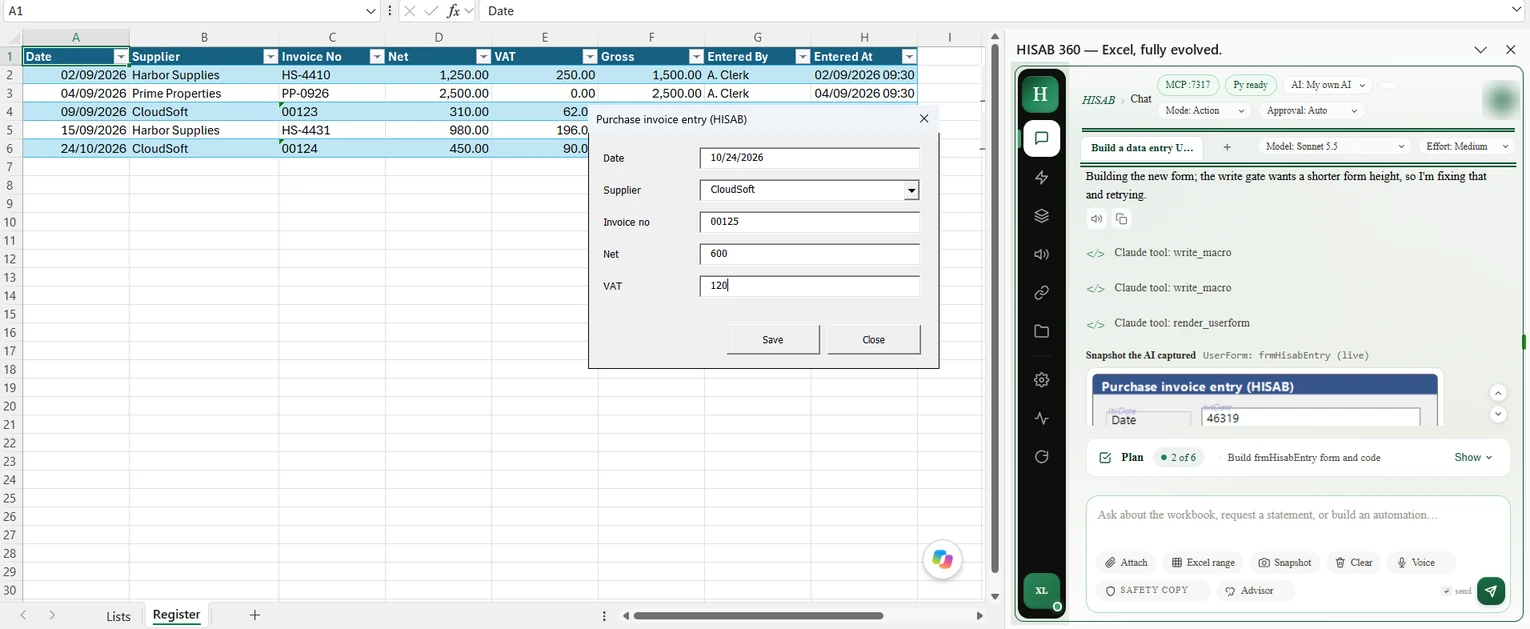
The finished form is ordinary VBA saved in the workbook, so colleagues can use it without HISAB installed. See the walk-through on generating VBA macros and a ribbon from chat.
Limits:
- Windows desktop Excel only. No Mac, no Excel for the web.
- No automatic undo. Apart from undoing a write its linter rejects, HISAB does not roll back VBA changes, and Ctrl+Z does not undo them. Keep a copy, or ask the AI to export a module before changing it.
Not for: collecting entries from people outside Excel (use Microsoft Forms), or anyone the built-in Form button already serves.