Excel UserForm in VBA: How to Create, Show, Load and Close One, With Working Code
Tested in Excel. On 24 October 2026 we built this guide's form in Excel for Microsoft 365 on Windows, pasted in every code block exactly as published, compiled it with no errors and used it: picked an invoice, typed an invalid amount, saved a correction, closed with the X and reopened. Everything behaved as described. Our copy of Excel is the 32-bit build; the code makes no API calls, so the bitness makes no difference. The screenshots are from that test (select one to see it full size).
An Excel UserForm is a custom dialog box you build in the VBA editor to collect and check input. This guide builds an invoice picker that corrects table rows, and covers Load versus Show, events, tab order, closing cleanly, and 64-bit, Mac and browser limits.
Last checked: 24 October 2026. Code targets 64-bit Microsoft 365 Excel for Windows. To add new rows with full validation, see how to create a data entry form in Excel, which uses the same register.
How to create a UserForm in Excel VBA: the short version
- Save as
.xlsmand press Alt+F11 to open the Visual Basic Editor. - Choose Insert > UserForm and set its
(Name)andCaptionin the Properties window (F4). - Drag controls from the Toolbox and name each one, such as
txtNet. - Right-click the form, choose View Code, and fill lists and defaults in
UserForm_Initialize. - Write
Clickcode for the buttons: check entries, write to the table, close. - In a standard module, add a macro that shows the form and attach it to a sheet button.
Microsoft's Create a User Form page covers step 2. The Developer tab is needed only for the sheet button in step 6 (show the Developer tab).
What is an Excel UserForm?
A UserForm is a window or dialog box that forms part of your macro's interface (UserForm object). Its code module responds to events like a click. A form earns its place when people enter or correct records away from the sheet; if a table with a few drop-down lists does the job, skip it.
UserForm controls in the Toolbox
The Toolbox offers the 14 standard Microsoft Forms controls below, each with an ID such as Forms.TextBox.1 (Add method).
| Control | Typical finance use | Prefix |
|---|---|---|
| Label | Captions, status messages | lbl |
| TextBox | Invoice number, amount | txt |
| ComboBox | Supplier, VAT rate | cbo |
| ListBox | List of invoices | lst |
| CheckBox | VAT included, paid | chk |
| OptionButton | Debit or credit | opt |
| ToggleButton | An on/off switch | tgl |
| Frame | Grouping related controls | fra |
| CommandButton | Save, Close | btn |
| MultiPage | Header and lines pages | mpg |
| TabStrip | Tabs over shared controls | tab |
| SpinButton | Stepping a period number | spn |
| ScrollBar | Scrolling through values | scr |
| Image | A company logo | img |
The example form used in this guide
Every snippet assumes these names:
frmInvoiceEditwithlstInvoices,txtInvoiceNo,txtDate,cboSupplier,txtNet,txtVAT,lblStatus,btnSave,btnCloseand caption labels.- Properties:
btnSave.Default= True, so Enter saves when no other button has focus (Default);btnClose.Cancel= True, so Esc runs Close (Cancel);cboSupplier.Style= 2 - fmStyleDropDownList, so users must pick from the list (Style). - Data: the data entry guide's register, table
tblPurchaseRegisteron sheetRegister, with columns Date, Supplier, Invoice No, Net, VAT, Gross (calculated), Entered By and Entered At. Suppliers sit in tabletblSupplierListon sheetLists.
UserForm design basics: tab order, alignment and keyboard access
Make the form work from the keyboard:
- Tab order. With the form selected, choose View > Tab Order (Tab Order dialog box), or set each control's
TabIndex, starting at 0 (TabIndex). - Alignment. Ctrl+click controls, then use Format > Align and Format > Make Same Size.
- Keyboard shortcuts. Give a label an
Acceleratorletter. Alt plus that letter moves focus to the control after the label in the tab order (Accelerator).
How to show a UserForm in Excel VBA
Call the form's Show method from a macro in a standard module (Insert > Module). If the form isn't loaded yet, VBA loads it first (Show method).
Option Explicit

Public Sub OpenInvoiceEditSimple()
    frmInvoiceEdit.Show
End Sub
This uses the form's default instance, fine for a quick test. For a sheet button, choose Developer > Insert > Button (Form Control), draw it and assign the macro. A UserForm can't sit on a sheet itself.
How to load, show, hide and unload a UserForm
Use Load to put a form in memory, Show to display (and if needed load) it, Hide to take it off screen while keeping its values, and Unload to remove it.
| Statement | What happens | Events that run | Values afterwards |
|---|---|---|---|
Load frmInvoiceEdit | In memory, not visible (Load) | Initialize | Fresh defaults |
frmInvoiceEdit.Show | Loads if needed, then displays | Initialize (if not loaded), Activate | As set by Initialize |
Me.Hide | Off screen, still loaded (Hide) | No load or close events | Kept, readable by code |
Unload Me | Removed from memory (Unload) | QueryClose; Terminate once nothing refers to it | Gone |
The classic trap: a hidden form keeps its old entries when shown again, because Initialize doesn't re-run. Hide only when the calling macro still needs the values.
How to initialize a UserForm in VBA
Put setup code in UserForm_Initialize, which runs after the form loads and before it appears (Initialize event). This goes at the top of the form's code module:
Option Explicit

Private m_Row As Long          ' table row being edited (1 = first data row, 0 = none)
Private m_SavedCount As Long

Public Property Get SavedCount() As Long
    SavedCount = m_SavedCount
End Property

Private Sub UserForm_Initialize()
    Dim lo As ListObject
    Set lo = ThisWorkbook.Worksheets("Lists").ListObjects("tblSupplierList")
    Select Case lo.ListRows.Count
        Case 0
            ' no suppliers yet: leave the list empty
        Case 1
            Me.cboSupplier.AddItem CStr(lo.DataBodyRange.Cells(1, 1).Value)
        Case Else
            Me.cboSupplier.List = lo.ListColumns(1).DataBodyRange.Value
    End Select
    Me.txtInvoiceNo.Locked = True  ' the invoice number identifies the row
    LoadInvoiceList
End Sub
Assigning a column to .List loads it in one step (List property); a single cell isn't an array, hence AddItem. A locked box can't be edited. SavedCount tells the calling macro what happened.
Initialize runs once per load, unlike Activate. Don't call Me.Show inside Initialize: the form appears before setup finishes, and a modal form pauses the rest of Initialize until it closes.
Filling a multi-column ListBox
Set ColumnCount and assign a block of cells. The first four table columns are Date, Supplier, Invoice No and Net:
Private Sub LoadInvoiceList()
    Dim lo As ListObject
    Set lo = ThisWorkbook.Worksheets("Register").ListObjects("tblPurchaseRegister")
    m_Row = 0
    Me.btnSave.Enabled = False     ' nothing to save until a row is picked
    Me.lstInvoices.Clear
    If lo.ListRows.Count = 0 Then Exit Sub
    With Me.lstInvoices
        .ColumnCount = 4
        .ColumnWidths = "70 pt;140 pt;80 pt;70 pt"
        .List = lo.DataBodyRange.Resize(, 4).Value
    End With
End Sub
List rows and columns count from zero, so Me.lstInvoices.List(Me.lstInvoices.ListIndex, 2) is the selected invoice number. ListIndex is -1 when nothing is selected (ListIndex).
Editing the selected record
Selecting a row runs the ListBox's Click event (Click event). The list was loaded straight from the table, so list row 0 is table row 1:
Private Sub lstInvoices_Click()
    Dim lo As ListObject
    Dim r As Range
    If Me.lstInvoices.ListIndex = -1 Then Exit Sub

    Set lo = ThisWorkbook.Worksheets("Register").ListObjects("tblPurchaseRegister")
    m_Row = Me.lstInvoices.ListIndex + 1
    Set r = lo.ListRows(m_Row).Range
    Me.txtInvoiceNo.Value = CStr(r.Cells(1, lo.ListColumns("Invoice No").Index).Value)
    Me.txtDate.Value = CStr(r.Cells(1, lo.ListColumns("Date").Index).Value)
    SelectSupplier CStr(r.Cells(1, lo.ListColumns("Supplier").Index).Value)
    Me.txtNet.Value = CStr(r.Cells(1, lo.ListColumns("Net").Index).Value)
    Me.txtVAT.Value = CStr(r.Cells(1, lo.ListColumns("VAT").Index).Value)
    Me.btnSave.Enabled = True
End Sub

Private Sub SelectSupplier(ByVal supplierName As String)
    Dim i As Long
    Me.cboSupplier.ListIndex = -1
    For i = 0 To Me.cboSupplier.ListCount - 1
        If StrComp(Me.cboSupplier.List(i, 0), supplierName, vbTextCompare) = 0 Then
            Me.cboSupplier.ListIndex = i
            Exit For
        End If
    Next i
End Sub
If a supplier has since left tblSupplierList, SelectSupplier leaves the box empty for the user to pick again. Because the form is modal, nobody can sort the table meanwhile.
Modal vs modeless UserForms
A modal form (the default) blocks the rest of Excel and pauses the calling macro until it is hidden or unloaded. A modeless form lets people keep working.
| Question | Modal (vbModal, default) | Modeless (vbModeless) |
|---|---|---|
| How to set it | frm.Show or frm.Show vbModal | frm.Show vbModeless, or ShowModal = False in the Properties window (read-only at run time) |
| Does the calling macro wait? | Yes, until hidden or unloaded | No, code after Show runs at once |
| Good for | Data entry, editing records | A lookup panel beside a ledger |
| Watch out for | Nothing after Show runs until it closes | No taskbar entry; data can be lost if you edit the project so it recompiles (for example, by removing a module); must save its own work |
Sources: Show method, ShowModal property.
UserForm events: which one to use when
Typical order: Initialize, Activate, control events, QueryClose, Terminate.
| Event | When it runs | Use it to |
|---|---|---|
UserForm_Initialize | After loading, before showing | Fill lists, set defaults |
UserForm_Activate | When the visible form becomes active | Refresh totals |
lstInvoices_Click | When the user selects a row | Load the record |
btnSave_Click | When clicked, or Enter on the Default button | Validate and save |
txtNet_BeforeUpdate | Before changed data is committed, ahead of AfterUpdate and Exit | Field checks |
UserForm_QueryClose | Before the form closes, whatever the cause | Handle the X button |
UserForm_Terminate | After unloading | Final clean-up |
Sources: BeforeUpdate, QueryClose, Terminate. End stops Terminate from running, so close forms with Unload, never End.
Events for controls added in code: the WithEvents wiring
VBA links a handler such as btnSave_Click automatically only for controls placed in the designer. A control created with Me.Controls.Add needs a WithEvents variable:
Private WithEvents m_btnExport As MSForms.CommandButton

Private Sub UserForm_Initialize()
    Set m_btnExport = Me.Controls.Add("Forms.CommandButton.1", "btnExport")
    With m_btnExport
        .Caption = "Export"
        .Left = 12: .Top = 180: .Width = 72: .Height = 24
    End With
End Sub

Private Sub m_btnExport_Click()
    MsgBox "Export clicked", vbInformation
End Sub
All three parts must exist: the module-level WithEvents variable, the Set, and a handler named variable_Event. Miss one and the button does nothing. WithEvents works only in class modules (form modules count), not with New and not as an array (Dim statement).
In the example form, put the WithEvents line at the top of the module (declarations below a procedure won't compile) and merge the Set and With lines into the existing UserForm_Initialize.
How to validate UserForm entries before saving
Check entries when the user clicks Save: explain the first problem, put the cursor there and stop. For duplicate checks and appending rows, see building a validated data entry form.
Private Function InputIsValid() As Boolean
    If m_Row = 0 Then
        MsgBox "Pick an invoice from the list first.", vbExclamation, "Invoice edit"
    ElseIf Not IsDate(Me.txtDate.Value) Then
        ShowProblem Me.txtDate, "Enter a valid invoice date."
    ElseIf Me.cboSupplier.ListIndex = -1 Then
        ShowProblem Me.cboSupplier, "Pick a supplier from the list."
    ElseIf Not IsAmount(Me.txtNet.Value, False) Then
        ShowProblem Me.txtNet, "Enter a net amount above zero and below 1 trillion."
    ElseIf Not IsAmount(Me.txtVAT.Value, True) Then
        ShowProblem Me.txtVAT, "Enter VAT of zero or more, below 1 trillion."
    Else
        InputIsValid = True
    End If
End Function

Private Function IsAmount(ByVal entry As String, ByVal allowZero As Boolean) As Boolean
    Dim n As Double
    If Not IsNumeric(entry) Then Exit Function
    n = CDbl(entry)
    If n >= 1000000000000# Then Exit Function
    IsAmount = (n > 0) Or (allowZero And n = 0)
End Function

Private Sub ShowProblem(ByVal ctl As MSForms.Control, ByVal message As String)
    MsgBox message, vbExclamation, "Check this entry"
    ctl.SetFocus
End Sub- Dates follow the PC's regional settings.
IsDateandCDateuse the Windows locale, and Microsoft warns that day and month order can be misread (type conversion functions). Across regions, consider separate day, month and year boxes. - Size-check amounts before converting.
IsNumericaccepts numbers too big forCCur, which would raise an error, so the check usesCDbland a ceiling.IsNumericalso accepts entries such as1e5or$5, whichCDblconverts; tighten the check if your users might type those.
For instant feedback on one field, BeforeUpdate can keep focus in the box until it is fixed. Use it sparingly. While the entry is invalid, focus cannot move to other controls, so the user can't click away until it is fixed.
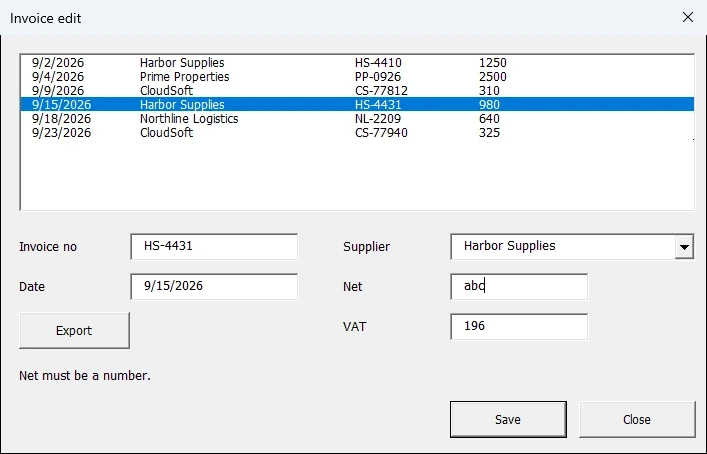
txtNet_BeforeUpdate holding the cursor in Net after "abc" was typed.Private Sub txtNet_BeforeUpdate(ByVal Cancel As MSForms.ReturnBoolean)
If Len(Me.txtNet.Value) > 0 And Not IsNumeric(Me.txtNet.Value) Then
Cancel = True
Me.lblStatus.Caption = "Net must be a number."
Else
Me.lblStatus.Caption = vbNullString
End If
End SubHow to write UserForm data back to a table
ListRows(n).Range returns data row n of the table, counting from 1; the header and total rows aren't part of ListRows (ListObject.ListRows). Writing by column name survives inserted columns; the calculated Gross column is left alone. A pivot table picks up the change when you refresh the pivot table.
Private Sub btnSave_Click()
    Dim lo As ListObject
    Dim r As Range
    Dim oldFormulas As Variant
    Dim failMsg As String

    On Error GoTo SaveFailed
    If Not InputIsValid() Then Exit Sub

    Set lo = ThisWorkbook.Worksheets("Register").ListObjects("tblPurchaseRegister")
    Set r = lo.ListRows(m_Row).Range
    oldFormulas = r.Formula                  ' snapshot for undo
    r.Cells(1, lo.ListColumns("Date").Index).Value = CDate(Me.txtDate.Value)
    r.Cells(1, lo.ListColumns("Supplier").Index).Value = Me.cboSupplier.Value
    r.Cells(1, lo.ListColumns("Net").Index).Value = _
        Application.WorksheetFunction.Round(CDbl(Me.txtNet.Value), 2)
    r.Cells(1, lo.ListColumns("VAT").Index).Value = _
        Application.WorksheetFunction.Round(CDbl(Me.txtVAT.Value), 2)

    LoadInvoiceList                          ' show the corrected values
    m_SavedCount = m_SavedCount + 1
    Exit Sub

SaveFailed:
    failMsg = Err.Description
    Resume RestoreRow
RestoreRow:
    On Error Resume Next
    If Not IsEmpty(oldFormulas) Then r.Formula = oldFormulas
    On Error GoTo 0
    MsgBox "The change was not saved: " & failMsg, vbExclamation, "Invoice edit"
End Sub
If anything fails part-way, the handler restores the row's original values and formulas. After a save, Save stays disabled until a row is picked again. To add rows instead, use ListRows.Add.
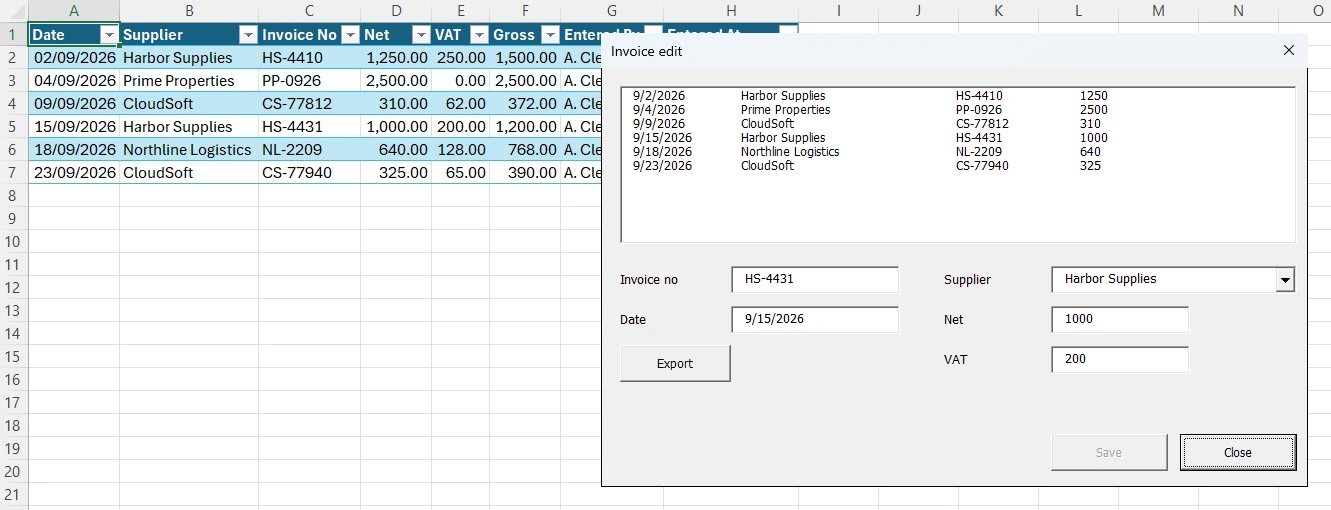
How to close a UserForm in VBA
Use Unload Me when the form does all its own work, or Me.Hide when a calling macro still needs its values. Either way, handle the title-bar X: it raises QueryClose, whose CloseMode says why the form is closing (QueryClose event).
| CloseMode constant | Value | Cause |
|---|---|---|
vbFormControlMenu | 0 | The user clicked X or the Control menu's Close |
vbFormCode | 1 | Code ran an Unload statement |
vbAppWindows | 2 | The Windows session is ending (sign-out or shutdown) |
vbAppTaskManager | 3 | Task Manager is closing Excel |
Private Sub btnClose_Click()
    Me.Hide
End Sub

Private Sub UserForm_QueryClose(Cancel As Integer, CloseMode As Integer)
    If CloseMode = vbFormControlMenu Then
        Cancel = True        ' keep the form in memory...
        Me.Hide              ' ...and treat X exactly like Close
    End If
End Sub
As Integer is the event's required signature. Routing X through Close gives the calling macro one outcome.
Reusing a form: let the calling macro own it
Because this form hides itself, the default-instance macro would show the old selection next time. Instead, create a new instance with New (UserForm object), show it, read its properties, then unload it.
Option Explicit

Public Sub OpenInvoiceEdit()
    Dim frm As frmInvoiceEdit
    On Error GoTo Failed

    Set frm = New frmInvoiceEdit    ' Initialize runs here
    frm.Show vbModal                ' the macro waits until the form hides
    If frm.SavedCount > 0 Then
        MsgBox frm.SavedCount & " invoice change(s) saved.", vbInformation, "Invoice edit"
    End If
    Unload frm
    Exit Sub

Failed:
    MsgBox "Invoice edit stopped: " & Err.Description, vbExclamation, "Invoice edit"
    Resume CleanUp                  ' leave error-handling mode first
CleanUp:
    On Error Resume Next
    If Not frm Is Nothing Then Unload frm
End Sub
Replace OpenInvoiceEditSimple with this (keep one Option Explicit per module) and attach OpenInvoiceEdit to the sheet button. If someone renames the Lists sheet, the macro shows a message instead of stopping in the editor (with VBA's default error trapping).
64-bit Excel and UserForms
64-bit has been the default install since Office 2019 and Microsoft 365 (64-bit VBA overview). The code above makes no Windows API calls, so it needs no changes. Older form code trips on two things:
- API calls need
PtrSafeandLongPtr. Tricks such as hiding a form's close button useDeclare. In 64-bit Office everyDeclareneedsPtrSafeand handles needLongPtr, andPtrSafealone doesn't fix a truncated handle. Declares in a form module must bePrivate(Declare statement). - Old common controls don't load. 64-bit Office can't load 32-bit MSComCtl and MSComCt2 controls such as TreeView, ListView and DateTimePicker (32-bit and 64-bit compatibility). Use a TextBox with the date checks above instead.
#If VBA7 Then
    Private Declare PtrSafe Function FindWindow Lib "user32" Alias "FindWindowA" _
        (ByVal lpClassName As String, ByVal lpWindowName As String) As LongPtr
#Else
    Private Declare Function FindWindow Lib "user32" Alias "FindWindowA" _
        (ByVal lpClassName As String, ByVal lpWindowName As String) As Long
#End If
Do UserForms work on a Mac, in Excel for the web or with ActiveX disabled?
Not in Excel for the web. On a Mac they generally run, but community experts say you can't design them there. Microsoft's ActiveX change doesn't mention UserForms.
- Excel for the web can't create, run or edit VBA macros; the code stays in the file for desktop Excel (Microsoft Support).
- Excel for Mac runs VBA in a sandbox that limits file access and communication across processes (Mac VBA page, written for Office 2016 for Mac). In a Microsoft Q&A community thread, volunteer experts say Windows-built forms run there but can't be designed, and ActiveX controls aren't available.
- ActiveX controls are disabled by default in Microsoft 365 and Office 2024 for Windows (Microsoft Support). Test your forms.
- Nothing happens? Try our macro not working checklist.
Office Scripts isn't a drop-in replacement: scripts reach only the workbook and run when a user or Power Automate starts them (Office Scripts vs VBA).
How HISAB 360 builds and checks UserForms
HISAB 360's AI builds UserForms in Windows desktop Excel as a guided multi-step workflow in chat, not a one-click generator.
- Templates and a visual designer. Five styled templates (data entry, wizard, settings, list-edit, login) wire buttons with
Private WithEventsvariables. A visual designer lets you drag, resize, recolour and relabel controls, even on a hand-built form, and returnsUserForm_Initializecode for the AI to install. - Linter checks. The VBA linter (more than 140 inspections) reports a WithEvents variable that is never Set, or an
m_-style handler with no WithEvents declaration, as an error; a WithEvents variable with no handler is a warning. It also flagsMe.ShowinsideUserForm_InitializeandDeclarewithoutPtrSafe. - A gate on code writes. When the AI writes or replaces a procedure, the write is undone if Error-level findings appear. It is strict enough to reject some working code, such as the standard
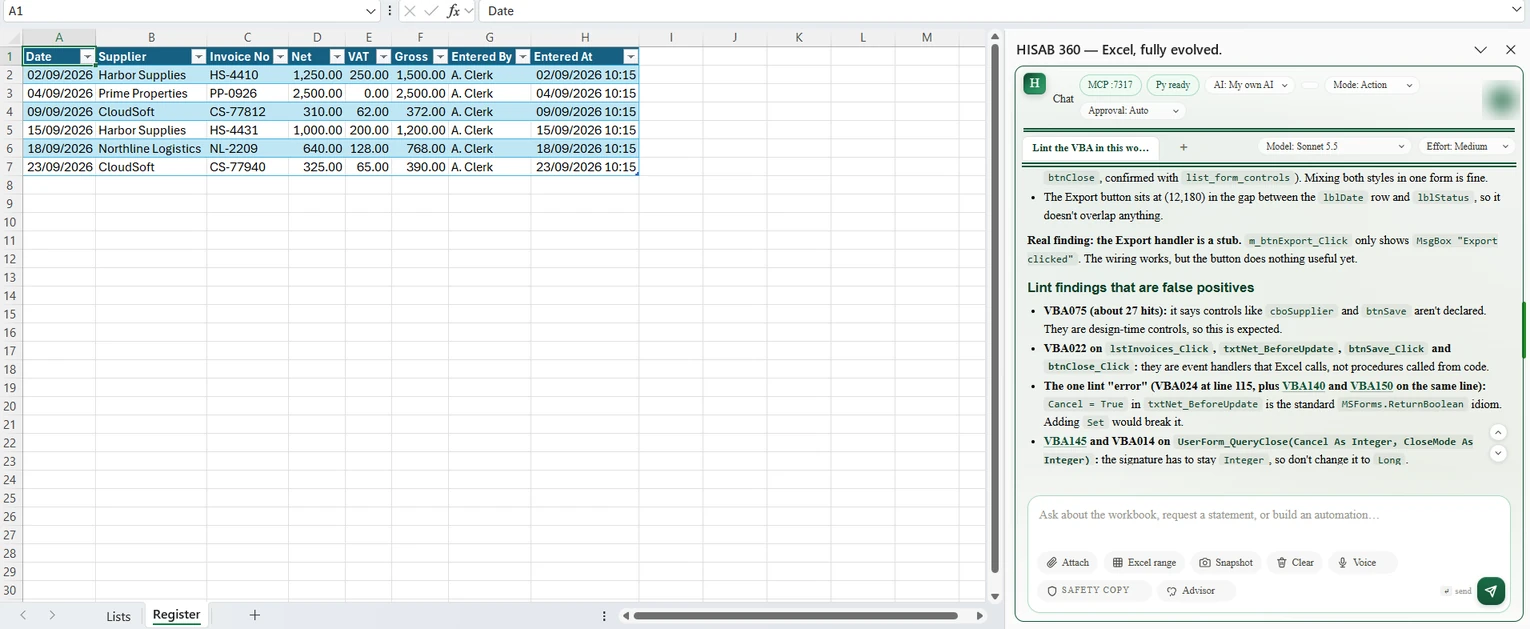
Cancel = Truein a BeforeUpdate handler, which it reports as an error. Form templates and imported modules skip it, so ask for a lint run afterwards. It is static analysis, not the compiler; the only real compile check is an optional sandbox test on a hidden copy, and even that is a probe, not a guaranteed compile of the whole project. - Portable. The form is plain VBA in your workbook, so colleagues with desktop Excel for Windows don't need HISAB. The AI can also add the sheet button that opens it.
We asked HISAB to lint the form built in this guide. Its AI confirmed the WithEvents wiring and the error handling, and pointed out that the Export handler is only a stub. The linter itself raised false positives on this working code: controls and properties set in the form designer (it reads the code, not the designer), event handlers reported as unused, and one Error-level finding on the standard Cancel = True in txtNet_BeforeUpdate — exactly the kind of finding that makes the write gate reject working code. HISAB's AI marked each of them as a false positive instead of changing the code.
The limits, plainly:
- Controls are created in code at load time (
Me.Controls.AddinUserForm_Initialize), not on the VBA editor's design surface. Saving a hand-built form back through the designer converts it: ActiveX controls such as a date picker become standard MSForms controls, and existing click handlers need re-checking. - Frames and MultiPages aren't truly nested in designer output. Handlers the designer writes (such as
btnSave_Click) won't fire until WithEvents wiring is added, and the linter doesn't flag them, so ask the AI to wire them and click each button yourself. - No full click-through testing: a sandbox driver can fill fields and run a button's handler on a hidden copy of the workbook (in our data-entry test it ran the Private
btnSave_Clickthere), and the AI can render a snapshot of a form, but nothing clicks through the form the way a person would. It cannot set VBA references and there is no automatic rollback. Save a copy of the workbook first: HISAB's module export keeps code, not a form's layout or pictures. - Setup is deliberate: macro permissions are off by default (editing needs Edit and Run), you tick Excel's "Trust access to the VBA project object model", the file must be
.xlsm,.xlsb,.xlamor.xltm, and HISAB must not be in Ask Only mode.
Not for: anyone who wants to lay out controls by hand in the VBA editor, or teams whose IT blocks VBA project access. For a one-off macro, try the free VBA macro generator, or see building VBA macros and a ribbon from chat.