Excel Macro Not Working? A 12-Point Diagnostic Checklist With Fixes
We make HISAB 360, one of the tools this guide covers.
Tested in Excel. On 24 October 2026 we reproduced checks 6, 7, 9, 10 and 12 in Excel for Microsoft 365 on Windows (build 16.0.20430) with the code on this page: the timestamp handler, events switched off and back on, a real "Sub or Function not defined" compile error, the PtrSafe Declare, UserInterfaceOnly protection and built-in RegExp. Each behaved as described. Checks 1 and 2 depend on Trust Center settings we did not change on our test PC, so they rest on Microsoft's documentation. The screenshots are from that test (select one to see it full size).
Excel macro not working? Usually the file is blocked because it came from the internet, macros are disabled in the Trust Center, the workbook was saved as .xlsx, a button points to a renamed macro, or the code has a compile error or missing reference. This checklist takes each in order, quickest first.
Sources last checked: 24 October 2026. Steps target Excel for Microsoft 365 on Windows; Excel for the web can't create, run or edit VBA macros. Just need to switch macros on?
Why is my Excel macro not working? Symptoms and first fixes
Start with what you see: the message bar under the ribbon, the error text, or nothing at all.
| What you see | Likely cause | First fix | Check |
|---|---|---|---|
| Red SECURITY RISK bar | Downloaded or emailed file (Mark of the Web) | If trusted: Properties > Unblock | 1 |
| Yellow SECURITY WARNING bar | Macros disabled with notification (normal) | Enable Content, or a Trusted Location | 2 |
| No bar; nothing happens | Macros disabled without notification | Review Macro Settings | 2 |
| Macros vanished after saving | Saved as .xlsx | Save as .xlsm; recover a copy | 3 |
| "Cannot run the macro" from a button | Renamed, deleted or other-workbook macro | Right-click > Assign Macro | 4 |
| Personal macros missing everywhere | Personal.xlsb didn't load | Disabled Items; startup folder | 5 |
| Worksheet_Change or Workbook_Open silent | Events off, or code in the wrong module | Application.EnableEvents = True | 6 |
| "Compile error" before anything runs | Error somewhere in the project | Debug > Compile VBAProject | 7 |
| "Can't find project or library" | Missing reference | Tools > References | 8 |
| Error mentioning PtrSafe | 32-bit Declare in 64-bit Excel | PtrSafe plus LongPtr | 9 |
| Run-time error 1004 writing to cells | Protected sheet | UserInterfaceOnly | 10 |
| BLOCKED CONTENT bar; ActiveX buttons dead | ActiveX disabled by default | Use a Form Control button | 11 |
| Regex or .vbs call fails on one PC | VBScript dependency | Built-in RegExp | 12 |
| Run-time error with a Debug button | A specific line failed | Click Debug, read the number | See below |
1. Macros blocked in a downloaded or emailed file (Mark of the Web)
Symptom: a red SECURITY RISK bar says macros are blocked because the file's source is untrusted, with no Enable Content button.
Cause: Windows marks downloads and email attachments as coming from the internet. Since Current Channel Version 2206 (rolled out from 27 July 2022), Office for Windows blocks macros in those files by default, whatever your macro setting.
Fix, only for a file you trust and expected:
- Close it, right-click it in File Explorer, choose Properties, tick Unblock and reopen.
- For regular exports, use a dedicated Trusted Location, not your Downloads folder. For OneDrive or SharePoint, Open in Desktop App avoids the mark.
- Traps: network-share files opened by IP address stay blocked unless IT trusts the location, and signing an .xlam add-in doesn't get it past the mark.
2. Trust Center macro settings are disabling it
Symptom: a yellow SECURITY WARNING bar, or no bar and no result, or "The macros in this project are disabled" in the VBA editor.
Cause: File > Options > Trust Center > Trust Center Settings > Macro Settings. Disable VBA macros without notification silences everything; Disable VBA macros except digitally signed macros blocks unsigned code. The setting applies only to the app you change it in.
Fix: choose the default, Disable VBA macros with notification, reopen the file and click Enable Content. Avoid "Enable VBA macros"; if settings are policy-managed, ask IT.
3. The workbook is saved as .xlsx (a macro-free file type)
Symptom: yesterday's macros are gone and every button fails.
Cause: .xlsx cannot store VBA code. Excel warns on save; clicking Yes discards the code.
Fix: Save As Excel Macro-Enabled Workbook (*.xlsm) or .xlsb (.xlam for add-ins). Renaming the extension won't recover the code; use the last .xlsm, a backup or OneDrive version history. Tip for ERP exports: keep the macro in its own .xlsm and point it at the CSV, so the export never has to hold code (more in Excel automation for finance teams).
4. A button runs a renamed, deleted or missing macro
Symptom: "Cannot run the macro '...'. The macro may not be available in this workbook or all macros may be disabled."
Cause: a button stores the macro name as text, so renaming or deleting the Sub breaks it. Copied sheets often keep a link such as 'Old Pack.xlsm'!PostJournals. Disabled macros give the same message, so rule out checks 1 and 2.
Fix: right-click the button, choose Assign Macro (Microsoft's steps) and pick the macro from this workbook. Only public Subs with no arguments appear in the list; Private Subs and Subs with arguments won't show up. ActiveX buttons instead run a Click procedure in the sheet module named after the button, such as CommandButton1_Click.
5. Personal.xlsb macros have disappeared
Symptom: your Personal Macro Workbook macros are missing from every file.
Cause: files in the XLStart folder open automatically whenever Excel starts. If Personal.xlsb was moved, renamed or disabled after a crash, it doesn't load.
Fix: go to File > Options > Add-ins, set Manage to Disabled Items, click Go, enable Personal.xlsb if listed, and restart. Then press Ctrl+G in the VBA editor and type ?Application.StartupPath to see the startup folder Excel uses. PERSONAL.XLSB normally lives there (or in an alternate startup folder set under File > Options > Advanced).
6. Event macros don't fire (Application.EnableEvents is off)
Symptom: Worksheet_Change or Workbook_Open code stops, while buttons still work.
Cause: code often sets Application.EnableEvents to False so its own edits don't retrigger it. If it fails before restoring it, events stay off Excel-wide until something sets it back to True or you restart Excel. The other cause is placement: sheet events belong in that sheet's module and workbook events in ThisWorkbook.
Fix: type Application.EnableEvents = True in the Immediate window and press Enter. Then make the handler restore events even when it fails. This sheet-module code timestamps column C when B2:B500 changes; adjust the range. If the module already has Option Explicit or a Worksheet_Change, merge these lines into it, because two procedures with the same name cause "Ambiguous name detected".
Option Explicit

Private Sub Worksheet_Change(ByVal Target As Range)
    Dim changed As Range
    Dim cell As Range

    Set changed = Intersect(Target, Me.Range("B2:B500"))
    If changed Is Nothing Then Exit Sub

    On Error GoTo CleanUp
    Application.EnableEvents = False

    For Each cell In changed.Cells
        cell.Offset(0, 1).Value = Now
    Next cell

CleanUp:
    Application.EnableEvents = True
    If Err.Number <> 0 Then
        MsgBox "Timestamp not written: " & Err.Description, vbExclamation
    End If
End Sub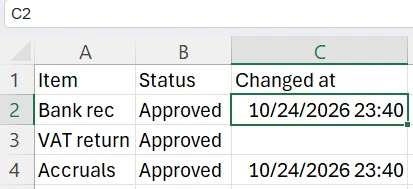
EnableEvents was False, so it has no time; setting it back to True restored stamping.7. A compile error anywhere in the VBA project
Symptom: "Compile error:" appears before anything runs, often after an edit to a different module.
Cause: with Compile On Demand ticked, VBA compiles code as needed, so an error in a rarely used module stays hidden until something calls into it.
Fix: in the VBA editor choose Debug > Compile VBAProject, which compiles your project and stops at the first error. Repeat until it greys out. Tick Tools > Options > Require Variable Declaration so new modules get Option Explicit.
| Compile error | Usual meaning | Fix |
|---|---|---|
| Sub or Function not defined | Misspelt name, Private procedure called from another module, or missing project reference (Microsoft's list) | Correct the name or scope |
| Variable not defined | Undeclared variable, often a typo | Fix the spelling or add Dim |
| Invalid qualifier | A dot after a non-object, such as a String used like a sheet | Use ThisWorkbook.Worksheets(sheetName) |
| ByRef argument type mismatch | Wrong type passed, often from Dim a, b As Long (a is Variant) | Type each variable, or pass ByVal |
Pasted AI-chat code often causes these.
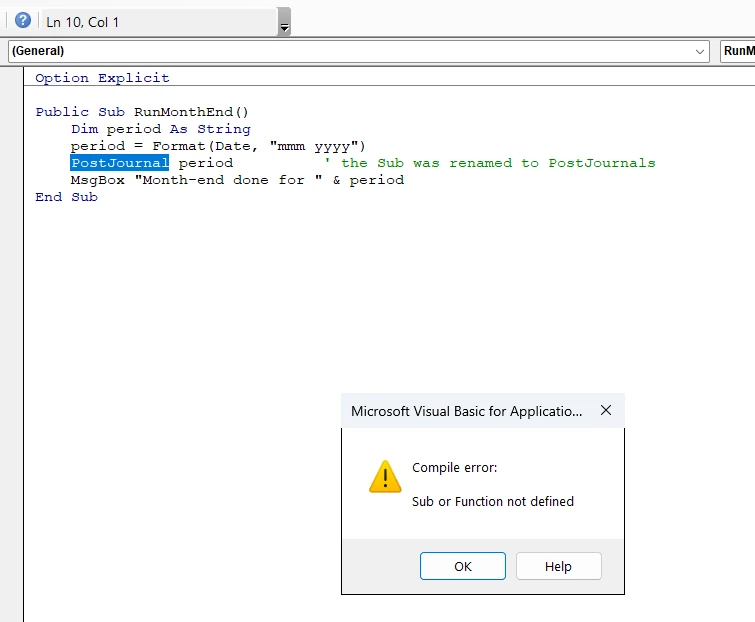
PostJournal after the Sub was renamed: compilation stops on the call with "Sub or Function not defined".8. Missing references ("Can't find project or library")
Symptom: the error highlights a built-in function such as Left or Date, and the file works on your PC but not a colleague's.
Cause: the project references a library (Outlook, ADO, a vendor DLL) that is missing or a different version on this PC. Microsoft says you can't run your code until every missing reference is resolved.
Fix: open Tools > References, and untick or replace anything marked MISSING:. For shared workbooks, late binding (As Object with CreateObject) avoids version-specific references.
9. Old Declare statements on 64-bit Excel (PtrSafe)
Symptom: "The code in this project must be updated for use on 64-bit systems", or odd results after someone added PtrSafe.
Cause: 64-bit is the default install since Office 2019 and Microsoft 365. Per Microsoft's 64-bit VBA overview, every Declare needs PtrSafe, and pointers and handles need LongPtr; PtrSafe alone doesn't stop truncated values.
Fix: update the Declare and the variables that hold its results. Adapted from Microsoft's GetActiveWindow example, this works in 32-bit and 64-bit Excel 2010 or later:
Option Explicit

' Old: Declare Function GetActiveWindow Lib "user32" () As Long
Private Declare PtrSafe Function GetActiveWindow Lib "user32" () As LongPtr

Public Sub ShowActiveWindowHandle()
    Dim windowHandle As LongPtr
    windowHandle = GetActiveWindow()
    Debug.Print "Active window handle: " & windowHandle
End Sub
10. The sheet or workbook is protected
Symptom: run-time error 1004 when writing, sorting or inserting rows.
Cause: protection applies to macros too, unless Worksheet.Protect is called with UserInterfaceOnly set to True.
Fix: unprotect and reprotect inside the macro, or use UserInterfaceOnly:=True. That setting can be lost after a save and reopen (Microsoft's page describes this for earlier versions), so reapply it on open. Protect also resets any Allow options you don't pass, so include the ones the sheet uses. Put this in ThisWorkbook and change the sheet name; if the module already has a Workbook_Open, merge these lines into it rather than adding a second one:
Option Explicit

Private Sub Workbook_Open()
    Dim ws As Worksheet

    On Error GoTo Failed
    Set ws = Me.Worksheets("Journal")
    ' Keep only the Allow... options this sheet needs
    ws.Protect UserInterfaceOnly:=True, AllowFiltering:=True
    Exit Sub

Failed:
    MsgBox "Could not reapply protection: " & Err.Description, vbExclamation
End Sub
A password-protected sheet needs Password:=, which anyone who opens the VBA editor can read.
11. ActiveX buttons and controls are disabled by default
Symptom: a BLOCKED CONTENT bar, and ActiveX buttons or combo boxes do nothing.
Cause: in Microsoft 365 and Office 2024, ActiveX controls are disabled by default. The setting is shared across Office apps.
Fix: replace ActiveX buttons with Form Control buttons (Developer > Insert > Form Controls), moving the click code into a Public Sub in a standard module. Whether UserForm controls are affected isn't documented, so test yours.
12. The macro depends on VBScript (RegExp or .vbs files)
Symptom: regular expressions (say, pulling invoice numbers from bank narrative) or a .vbs call fail on one PC. Look for the "Microsoft VBScript Regular Expressions 5.5" reference, CreateObject("VBScript.RegExp") or wscript.
Cause: Microsoft is phasing VBScript out of Windows. Its September 2025 post says it will be off by default in approximately 2026 or 2027. At full removal (date not set), .vbs calls from VBA stop being supported and VBScript RegExp references break unless Office is on a supported build.
Fix: Microsoft 365 Version 2508 (Build 19127.20154) and later include RegExp, Match, MatchCollection and SubMatches natively; don't assume older versions do. Replace .vbs calls with VBA. Microsoft hasn't listed Scripting.Dictionary or FileSystemObject as affected; in the comments under its post, the author says they haven't changed and should keep working. We confirmed the RegExp change on build 16.0.20430: Dim re As New RegExp compiled and ran with no VBScript reference set.
How to fix a run-time error (the Debug button)
When a macro hits a run-time error, Excel shows the error number with End and Debug buttons. Click Debug to open the VBA editor with the failing line highlighted in yellow, fix that line, then press F5 to continue or Run > Reset to stop. Common numbers:
- 9, Subscript out of range: often a sheet or workbook name that doesn't exist (renamed or misspelt).
- 13, Type mismatch: often text in a cell the code treats as a number.
- 91, Object variable not set: a missing
Set, or an object that isNothing, such as a failedFind. - 1004: has many causes; a protected sheet (check 10) is a common one.
Debugging VBA in Excel: how to debug a macro step by step
If the macro runs but gives wrong numbers, open the VBA editor with Alt+F11 and:
- Step through it: click inside the macro and press
F8. The yellow line runs next;Shift+F8steps over a call. - Set a breakpoint:
F9on a line, thenF5runs to it. - Inspect values: hover over a variable, open View > Locals Window, or type
?variableNamein the Immediate window. - Log and assert as it runs:
Debug.Printwrites to the Immediate window without stopping.Debug.Assert total >= 0pauses on that line only when the condition is False (Assert method). - Unmask hidden errors: if
On Error Resume Nexthides failures, tick Tools > Options > General > Break on All Errors, then switch it back. - Stop a runaway loop with
Ctrl+Break.
VBA debugging tools compared
| Tool | Finds | Misses | Cost |
|---|---|---|---|
| Debug > Compile VBAProject | Real compile errors and missing references | Run-time and logic errors, security blocks | Built in |
| F8, breakpoints, Immediate window | Run-time errors, wrong values | Code that never starts (checks 1–6) | Built in |
| Rubberduck | Inspections with quick fixes, unit tests, refactoring | Environment issues (security blocks, references) | Free, GPLv3; repository archived 8 March 2026, last stable v2.5.91 (27 November 2023) |
| HISAB 360 lint and sandbox | Static checks across all modules; optional compile probe on a copy | Some compile errors; security settings and references | 15-day trial (full product, no card); see pricing |
For more code-inspection tools, see Rubberduck VBA alternatives.
How HISAB 360 helps diagnose a broken macro
HISAB 360 is an AI assistant inside Windows desktop Excel. Two of its tools help with code-level causes such as checks 6, 7 and 9. They can't fix a blocked file or a policy setting, or see whether events are currently off in your Excel session.
Lint across the whole project. The AI can run HISAB's VBA linter over every module: more than 140 static inspections, including compile-error and near-compile checks that overlap check 7's table (undeclared variables, calls to procedures that don't exist in any module, the Dim a, b As Long trap, ByRef argument type mismatches, a missing Set, wrong argument counts). Others flag event handlers in the wrong kind of module, EnableEvents or ScreenUpdating switched off with no line anywhere in the procedure that switches it back on (a restore that an error skips isn't caught), Declare without PtrSafe, and On Error Resume Next left on. Most late-bound Object code isn't member-checked, so typos there can slip through.
We tried it on a workbook with two of this page's problems planted: a macro calling PostJournal after the Sub had been renamed (check 7), and an import macro that switches EnableEvents off and never back on (check 6). We asked, in plain words, why the macro would not run and why the timestamps had stopped. HISAB found both, explained that EnableEvents stays off for the whole of Excel, and suggested the same Immediate-window fix and clean-up block as this guide. It also got one thing wrong: it said New RegExp needs the VBScript reference, which is no longer true on current Microsoft 365 builds (check 12). Read its suggestions before you accept them.
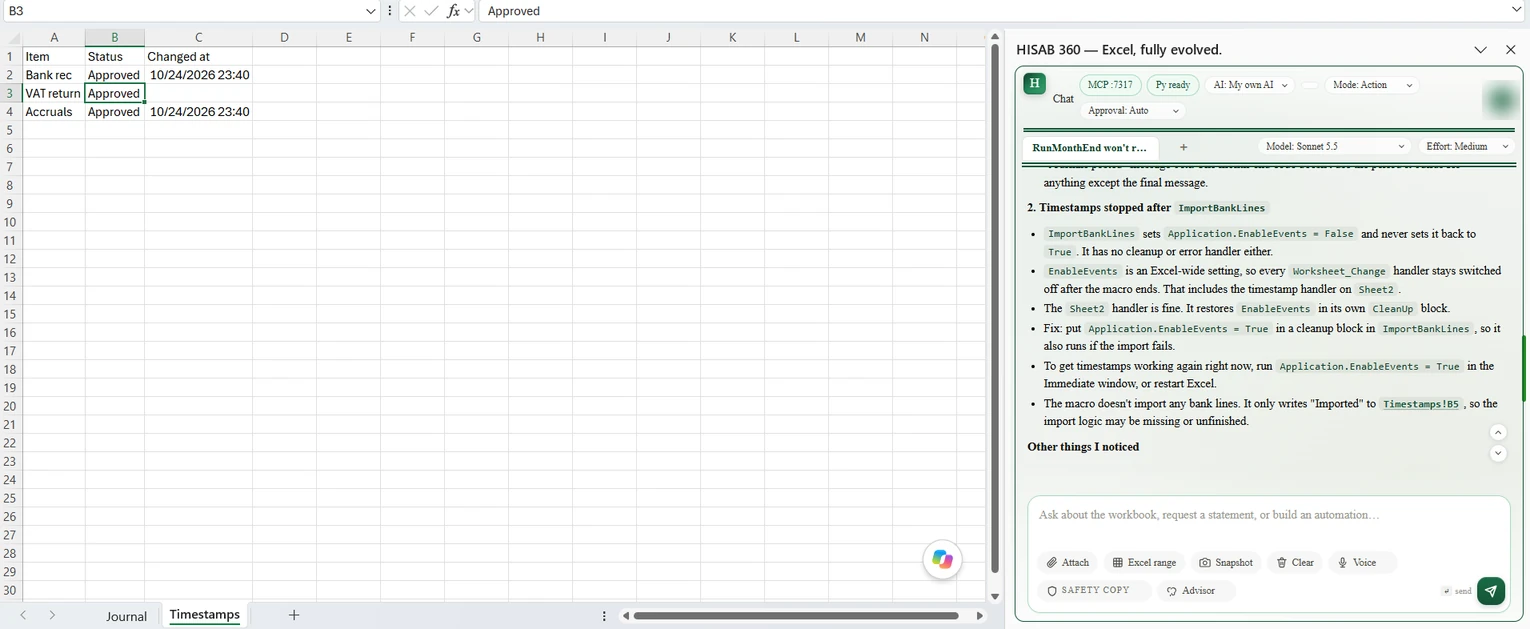
A test run on a copy. The sandbox test copies the saved workbook, opens the copy in the background, applies a proposed fix, runs a compile probe and any smoke-test macros you choose, reports, and deletes the copy. Your live workbook's code isn't changed; to keep the fix, the AI applies it to the real file.
The limits, plainly:
- It is static analysis, not the VBA compiler, and can miss real compile errors. It reports; the AI explains and rewrites. When the AI uses its write or replace macro tools, a lint gate undoes the change on Error-level findings; it can occasionally reject valid code, and imported modules or form templates aren't gated.
- The sandbox compile is a probe, not a guaranteed full-project compile. It can be inconclusive if Excel is busy or report a macro-security block as a compile error, and a pass with no smoke tests isn't proof the macro works. A window may flash up briefly. Unsaved changes are saved first, and smoke-test macros run for real, so effects outside the workbook aren't sandboxed.
- It doesn't set VBA references, change Trust Center, Mark of the Web or ActiveX settings, or work inside a password-protected VBA project (unlock it first under Tools > VBAProject Properties > Protection).
- You opt in: HISAB's macro permissions are off by default (editing needs Edit plus Run), you tick "Trust access to the VBA project object model" (Microsoft calls it a possible security hazard), and the code must be in a module of a macro-enabled workbook. Windows desktop Excel only.
Good for: finance teams maintaining inherited multi-module workbooks. Not for: a single blocked download (checks 1 and 2 are free), Mac or browser users. See how to generate VBA macros from chat in HISAB or try the free VBA macro generator.