How to Turn Off Copilot in Excel: Every Level, From the Copilot Button to Admin Policy
Tested in Excel. On 25 October 2026 we worked through levels 1 to 5 in Excel for Microsoft 365 on Windows (Microsoft 365 Family, Version 2609, Current Channel): we moved the Copilot button to the ribbon and back, cleared Enable Copilot and restarted Excel, then switched it back on, and checked the add-in lists and the privacy settings. We did not switch off connected experiences, uninstall the Windows app or try the admin routes; those rest on Microsoft's documentation, re-checked the same day. Microsoft changed how Copilot appears in Excel in mid-2026, and this guide now follows the new layout. The screenshots are from the test (select one to see it full size).
A Copilot button sits in the corner of the grid. On some builds, a suggestion card appears the moment you type =. Something offers to summarise a table you have been staring at for eleven years. If you want to turn off Copilot in Excel, the frustrating part is that "Copilot" is not one thing — it is a button in the corner of the grid, a formula suggester, a set of connected services and, on Windows, a separate app with the same name. Switching off one of them leaves the others running.
This guide goes level by level, from the purely cosmetic to the genuinely permanent, and says plainly what each one does and does not stop. Menu paths are quoted as Microsoft spells them, which means American spellings in the option names, and Microsoft moves these settings between builds — if a path below does not match your screen, the vendor's own turn off Copilot page is the authority.
Pick your level first
Most people who arrive here want level 3. Know what the other levels do before you go further than you meant to — level 5 in particular takes several unrelated features down with it.
| Level | What it stops | What it leaves running | Who can do it |
|---|---|---|---|
| 1. Move the button to the ribbon and hide it | The Copilot button over the grid | Everything — it is cosmetic | You |
| 2. Dock the Copilot button | The full-size button, for this session | The Copilot pane, formula suggestions | You |
| 3. Clear Enable Copilot | Copilot in that app on that device | Copilot in Word, Outlook, Windows, Edge | You, on a personal account |
| 4. Turn off formula suggestions | The = suggestion cards | The Copilot pane | You, if your Excel has them |
| 5. Turn off connected experiences | Copilot, plus many other online features | Offline Excel | You (on a work account, your administrator may control it) |
| 6. Uninstall the Windows Copilot app | The separate desktop app and its key | Copilot inside Office apps | You, as a local admin |
| 7. Licence or policy change | Copilot across the organisation | Nothing Copilot-related | Your Microsoft 365 admin |
Level 1: move the Copilot button to the ribbon, then hide it
Current builds no longer put Copilot on the ribbon. It opens from a button in the lower-right corner of the grid, which Microsoft calls the Copilot Dynamic Action Button. Right-click it and choose Move to top (Microsoft's page calls this Move to ribbon; on our test machine it was labelled Move to top). The button then sits in a group called Assistance on the Home tab, and its drop-down offers Move out of Ribbon to put it back.


Once it is on the ribbon you can hide it: right-click the ribbon, choose Customize the Ribbon, expand Home under Main Tabs, select the Assistance group and click Remove, then OK. Two honest caveats. You cannot remove the Copilot button on its own, only the whole group. And this changes nothing about whether Copilot is running — it is a tidier ribbon, not an off switch. If the button is the only thing bothering you, stop here; if you want the feature gone, keep reading.
Level 2: dock the Copilot button
Right-click the Copilot button in the lower-right corner and choose Dock, or drag it to the side of the sheet; it shrinks to a small icon at the edge of the window. Microsoft says docking lasts only for your current working session, so the button may be back the next time you open Excel.
Older builds had a checkbox under File > Options > Copilot that showed the icon only for highly relevant suggestions. Our test machine does not: its Copilot page holds only Enable Copilot. If you want the button gone for good, use level 3.
Level 3: turn off Copilot in Excel with the Enable Copilot checkbox
This is the real answer for most people, and it is three clicks.
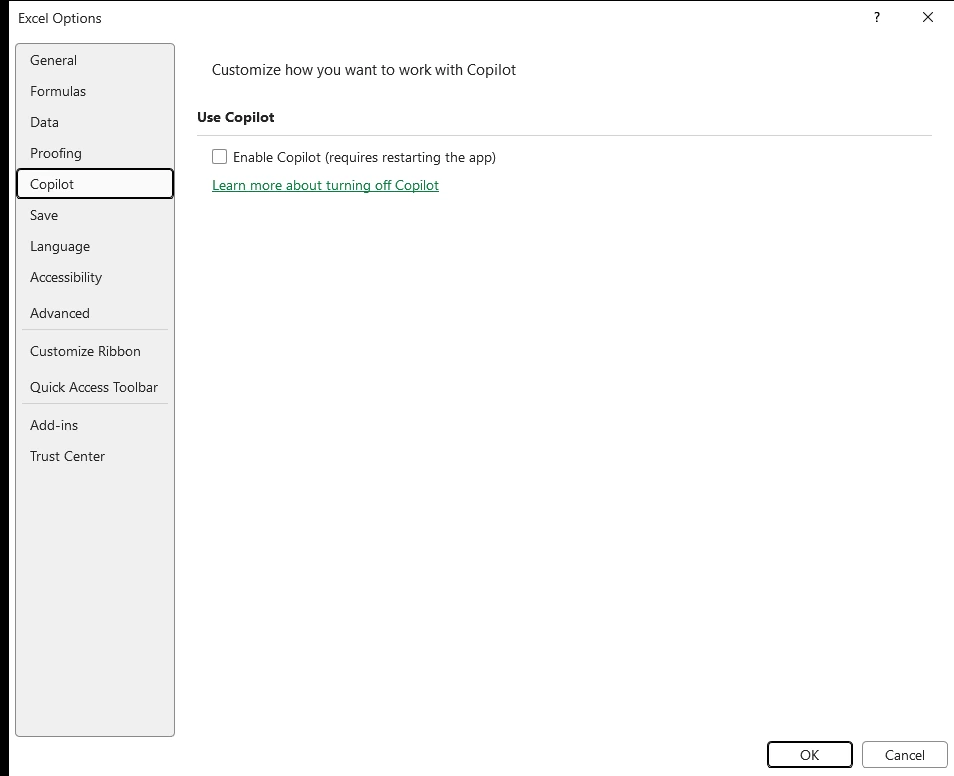
- In Excel, go to File > Options > Copilot.
- Clear the Enable Copilot checkbox.
- Select OK, then close and restart Excel.
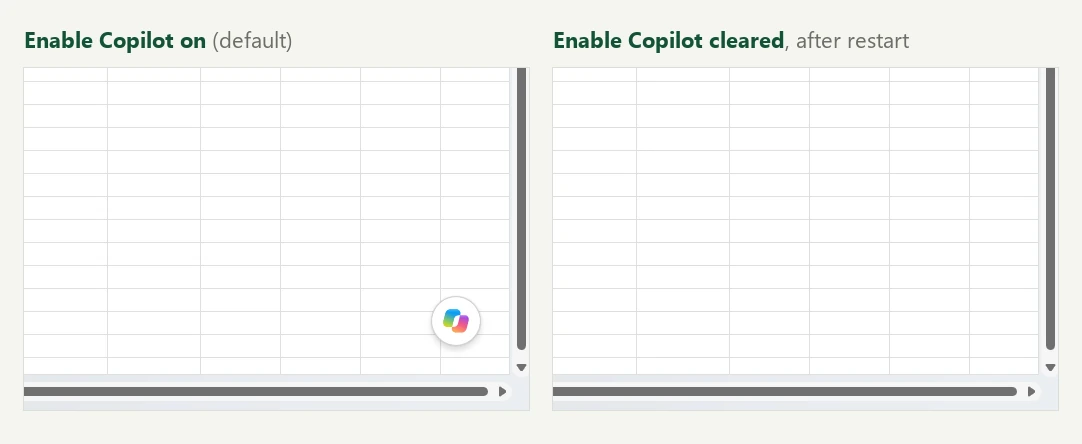
Microsoft says clearing it hides Copilot's entry points in that app, including the Copilot button, and you cannot use any Copilot features there. On our test machine the corner button disappeared as soon as we clicked OK and stayed gone after a restart; ticking the box again brought it back after the next restart. On a Mac the path is the app menu, then Preferences > Authoring and Proofing Tools > Copilot.
Three things to know before you consider the job done:
- It is per app and per device. There is a separate checkbox in Word, PowerPoint and OneNote, and clearing it on your desktop does nothing to your laptop. Outlook is different again — it uses a toggle in its own settings rather than a checkbox in Options.
- Your build has to be new enough. Microsoft's page lists the setting from Excel for Windows version 2501 and Excel for Mac 16.93.2, with similar floors for the other apps. If there is no Copilot entry in the Options list, update Excel and look again before trying anything more drastic.
- It is for personal Microsoft accounts. Microsoft says these settings are not available when you are signed in with a work or school account. If you use Excel through your employer, the decision sits with your administrator — see level 7.
Level 4: turn off formula suggestions separately
Copilot's formula help is its own pair of settings, and people happy to keep the pane often still want these gone. There are two: formula completion, which proposes a whole formula the instant you type = in a cell, and formula by example, which watches you type a few values by hand and offers one formula to fill the rest of the column.
If your Excel shows Copilot formula suggestions, Microsoft documents two checkboxes under File > Options > Copilot on Windows: Show Copilot suggestions for completing formulas and Show Copilot suggestions for formulas based on patterns in your content. In Excel for the web they are under File > Options (…) > Copilot Settings, and you can also switch formula completion off from the card itself: select More options (…), then Turn off Copilot suggestions for completing formulas. The suggestions stay off until you tick the boxes again.
Microsoft has rolled these out by channel, language and licence, so not every copy has them. On our Microsoft 365 Family test machine the Copilot page held only Enable Copilot, and typing = brought up no suggestion card. If you see neither checkbox and no cards, there is nothing to switch off.
This level is worth doing even if you keep everything else. A card that appears at the exact moment you start typing a formula is an interruption in the one part of Excel where you were already concentrating.
Level 5: connected experiences — powerful, and it takes hostages
If the Enable Copilot checkbox genuinely is not available to you, the documented fallback is to switch off the connected service class that Copilot depends on:
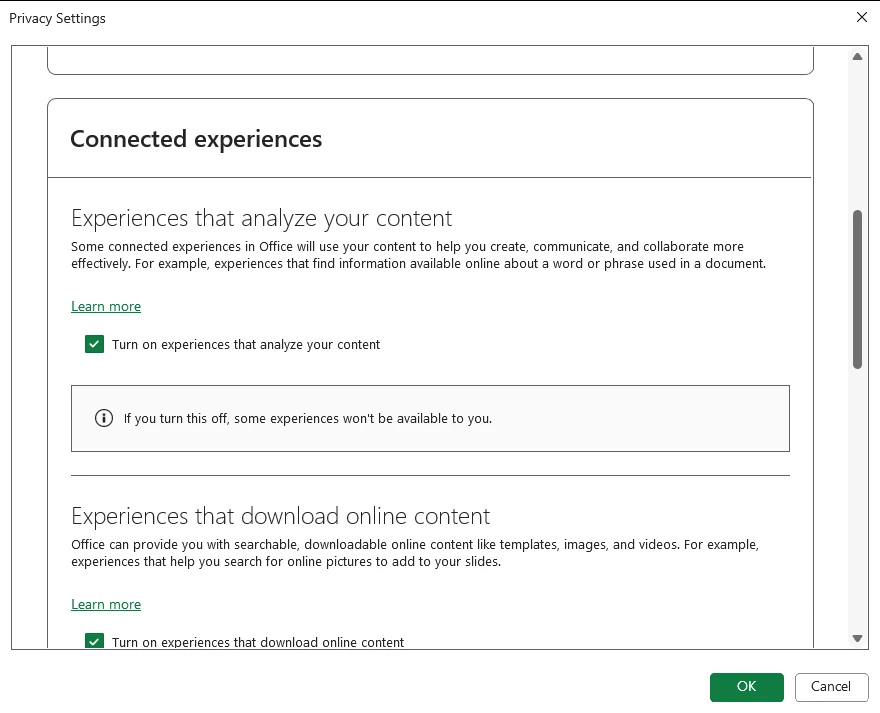
- File > Account > Account Privacy > Manage Settings.
- Under Connected experiences, clear Turn on experiences that analyze your content.
- Select OK, then close and restart Excel.
Microsoft's own warning is the important part: changing your account privacy settings to turn off Copilot also turns off other features you might want to use. That category is not Copilot-specific. Microsoft's examples include suggested replies in Outlook, text predictions in Word, PowerPoint Designer and automatic alt text. Its full list also covers Dictation and Translator, plus several Excel features: Analyze Data, Data types (Stocks and Geography), Insert data from picture, PivotTable recommendations, Map charts and Python in Excel. Basic spelling and grammar checking keeps working. You only need to change it in one app; the others pick it up next time they open. The adjacent toggle, Turn on experiences that download online content, covers templates, images, help articles and videos, so clearing that one too leaves the template gallery and in-app help empty.
Use this level when you have no other option, or when you want the whole class of online content analysis off as deliberate policy. Do not use it as a shortcut for hiding an icon — level 3 is narrower and reversible in one click.
What about disabling the Copilot COM add-in?
A lot of advice online tells you to open File > Options > Add-ins, set Manage to COM Add-ins, click Go, and untick Copilot. Open the dialog by all means, but set your expectations: Copilot is built into Excel rather than loaded as a separate COM add-in, so on most machines there is nothing there to untick. On our test machine no Copilot entry appeared in the COM Add-ins or Excel Add-ins lists, active or inactive.
The dialog is still worth a look. Organisations sometimes deploy Copilot-adjacent or third-party AI tooling as a real add-in, which will be listed and can be unticked, and the same screen holds the Disabled Items list. If you find a Copilot entry, untick it; if you do not, that is expected, and level 3 is your route.
Level 6: remove the Copilot app from Windows
The Copilot app on the Windows taskbar is a separate program from Copilot in Excel. Turning one off does nothing to the other, which is why people switch Copilot off in Excel and still see it every time they glance at the taskbar.
- Uninstall it. Settings > Apps > Installed apps, search for Copilot, open the three-dot menu and choose Uninstall. That removes the app. Windows may also list a separate Microsoft 365 Copilot app (the former Microsoft 365 app); that is a different program, and uninstalling one leaves the other.
- Clear the taskbar. If an icon lingers after uninstalling, right-click it and choose Unpin from taskbar.
- Reclaim the Copilot key. Newer keyboards have a dedicated key. Open Settings > Personalization > Text input > Customize Copilot key on keyboard and choose Search or another app. Microsoft says a later Windows 11 update adds an option under Settings > Bluetooth & devices > Keyboard to make the key act as Right Ctrl or the Context menu key. The setting does nothing on a PC without a Copilot key.
- Edge is separate again. Microsoft Edge carries its own Copilot entry points, configured in Edge under Settings > Appearance > Copilot and Sidebar.
Be realistic about the ceiling: uninstalling the app removes the app. Microsoft keeps adding Copilot entry points across Windows, and some reappear after a feature update. On a work-managed device the uninstall may be blocked or silently reversed by IT policy.
Level 7: turning it off for a whole organisation
If you are an administrator, do not ask 200 people to clear a checkbox. Microsoft says the per-app Enable Copilot setting is not available to work or school accounts, so administrators cannot use it. The routes that hold are:
- Licensing. In the Microsoft 365 admin center, unassign the Microsoft 365 Copilot licence from the user or group. That removes the paid Copilot features, but it does not cut the bill: you keep paying for the spare licence until you remove it from the subscription under Billing. Depending on your plan and tenant size, users without a licence may still see Copilot Chat.
- Integrated apps. Under Settings > Integrated apps you can block the Copilot app for the whole tenant, or for chosen users and groups. Microsoft says this blocks Copilot Chat in the Microsoft Copilot app, Teams, Outlook and on the web. It does not list Excel, so do not rely on it for Excel.
- Cloud Policy. In the Microsoft 365 Apps admin center (
config.office.com), go to Customization > Policy Management and create a policy configuration for the group. Set Allow the use of connected experiences in Office that analyze content to Disabled; Microsoft says Copilot features are then unavailable in Excel, Word, PowerPoint, OneNote and Outlook. The same setting exists in Group Policy under User Configuration\Policies\Administrative Templates\Microsoft Office 2016\Privacy\Trust Center. It also switches off every other feature that analyses content (see level 5), so test it on a pilot group first. Office checks for new policy every 90 minutes for users in a targeted group (24 hours otherwise) and applies it when the app restarts.
Group Policy and registry recipes circulate for this too. Some work, some are stale; the policy names are the same in Group Policy and Cloud Policy, but Cloud Policy writes to a different registry key and takes precedence — verify any of them against current Microsoft documentation and a test machine before deploying, rather than against a forum post.
Personal account versus work account: what you can actually control
This is where most of the frustration comes from, so it is worth stating flatly.
On a personal Microsoft account, every level from 1 to 6 is yours (level 4 only if your Excel shows formula suggestions). You can switch Copilot off in each app, quiet the suggestions, disable connected experiences and uninstall the Windows app. What you cannot do is make Microsoft stop shipping it: an update can reintroduce an entry point, and you may have to revisit Options after a major version change.
On a work or school account, Microsoft says the Enable Copilot setting is not available, and your organisation may also control the privacy settings in level 5. Nothing you do locally overrides tenant policy, and nothing you do locally changes what your employer is paying for. If Copilot needs to be off for compliance reasons rather than preference ones, that is a request to IT with a written reason, not a setting you can fix from your desk.
What turning Copilot off does not do
- It does not stop the billing. On a business plan, a disabled Copilot on a licensed seat is still a paid seat; the charge stops only when the licence is removed from the subscription, not just unassigned. On Microsoft 365 Personal or Family, Copilot is part of the plan, so switching it off does not lower the price.
- It does not travel. The setting is per app and per device. Microsoft says you cannot turn Copilot off in Excel for the web, iPhone, iPad or Android at all; it points you to the account privacy settings instead (level 5).
- It does not remove AI from your organisation. Copilot Chat, agents built in Copilot Studio and Copilot in other Microsoft products are governed separately.
- It is not permanent by itself. Feature updates change defaults and add entry points. If it matters, check Options again after a major update.
If you still need the work done — the routes that involve no AI at all
Plenty of people turn Copilot off and want nothing like it back. The jobs it was nudging you towards still exist, and Excel has had deterministic answers to most of them for years — answers that produce the same result every time, which is the property Copilot cannot offer and Microsoft itself cautions about.
- Repeating an import or a clean-up every month: Power Query. You record the transformation once, and Refresh All reproduces it exactly, with every step visible and editable.
- Repeating a sequence of actions: a macro. The macro recorder writes the code for you and never invents a step you did not perform.
- Formulas and lookups:
SUMIFS,XLOOKUP,IFERRORand a properly structured table cover the great majority of finance work.
None of that needs a subscription, a connected service, or a review of what the model guessed.
A note on why people switch it off
Two quite different groups end up on a page like this. The first does not want AI anywhere near their work — the suggestions are noise, the data handling is a question they would rather not open, and that is a complete and reasonable position. Everything above is written for you, and the guide ends here.
The second group tried Copilot properly and switched it off because it could not do the thing they needed — no connection to the accounting ledger, a worksheet function Microsoft has since withdrawn (the COPILOT function stopped working on 14 September 2026), workbooks blocked by sensitivity labels, results that change between runs. If that is nearer the mark, the specific boundaries are catalogued in what Copilot in Excel cannot do for accountants, and AI in Excel for accountants sets out where the technology earns its keep and where it does not. That is a different question from this one, and you are welcome to ignore it.